
En tilgjengelighetskontroll for PDF er et verktøy som skanner og bekrefter om PDF-filene dine oppfyller juridiske krav og brukervennlighetsstandarder som WCAG, Section 508 og retningslinjer som gjelder for bestemte domstoler. Hvis du er ansvarlig for samsvar i et advokatfirma eller en juridisk avdeling, er det ikke valgfritt å gjøre dokumenter tilgjengelige – det er avgjørende for risiko, omdømme og betjening av klienter. Når skannede kontrakter, eldre filer og store mengder dokumenter som skal sendes inn til domstolen, inngår i arbeidet, trenger du løsninger for PDF-tilgjengelighet som faktisk passer inn i juridiske arbeidsflyter. I denne veiledningen ser du hvilke verktøy som oppfyller disse kravene – med støtte for virksomheter i stor skala, integrasjon med juridiske DMS-er, satsvis utbedring, AI-drevet tagging og løpende samsvar, slik at du trygt kan levere tilgjengelige PDF-filer som oppfyller standardene hver gang.
Hvorfor du kan stole på våre programvareanbefalinger
6,700+
Reviews
20
Industry experts
16+
Evaluation factors
14
Years
Teamet vårt har testet og anmeldt programvare siden 2012. Vi leder selv advokatfirmaer, så vi vet hvor vanskelig og hvor viktig det er å velge riktig programvare.
I denne guiden har vi vurdert verktøyene gjennom praktisk testing og uavhengig research og gitt dem poeng ut fra våre utvelgelseskriterier.
Anmeldelsene våre bygger på vår egen redaksjonelle vurdering. De er ikke et salgsargument.
Sammenligningstabell: Tilgjengelighetskontroller for PDF
Denne sammenligningstabellen oppsummerer prisdetaljer for mine utvalgte programvareløsninger for kontroll av PDF-tilgjengelighet.
| Tool | Best For | Trial Info | Price | ||
|---|---|---|---|---|---|
| 1 | Best for law firms using iManage or NetDocuments | 14-day free trial | From $10.99/user/month | Website | |
| 2 | Best for WCAG and Section 508 PDF compliance checks | Free demo available | Pricing upon request | Website | |
| 3 | Best for AI-aided PDF remediation at enterprise scale | Free demo available | Pricing upon request | Website | |
| 4 | Best for enterprise PDF compliance monitoring | Not available | Pricing upon request | Website | |
| 5 | Best free PDF/UA validator for batch compliance checks | Free plan available | Free plan available | Website | |
| 6 | Best for expert-led PDF remediation as a service | Free demo + 7-day free trial available | From $490/year | Website | |
| 7 | Best for FedRAMP-covered PDF compliance audits | Free demo available | Pricing upon request | Website | |
| 8 | Best for AI-driven PDF tagging at legal scale | 7-day free trial | From $19.99/user/month (billed annually) | Website | |
| 9 | Best for court and judicial PDF compliance | Free plan available | From $599/user/year | Website | |
| 10 | Best for AI-driven PDF tagging at scale | Free demo available | Pricing upon request | Website |


Anmeldelser av tilgjengelighetskontroller for PDF
\u003cspan style=\u0022font-weight: 400\u0022\u003eNedenfor finner du mine detaljerte sammendrag av de beste tilgjengelighetskontrollene for PDF som kom med på kortlisten. Anmeldelsene mine gir et detaljert innblikk i funksjonene, de beste bruksområdene og egenskapene til hvert verktøy, slik at du kan finne det som passer best for deg.\u003c/span\u003e
 Best for law firms using iManage or NetDocuments
- 14-day free trial
- From $10.99/user/month
Visit WebsiteCustomer Rating:4.6/5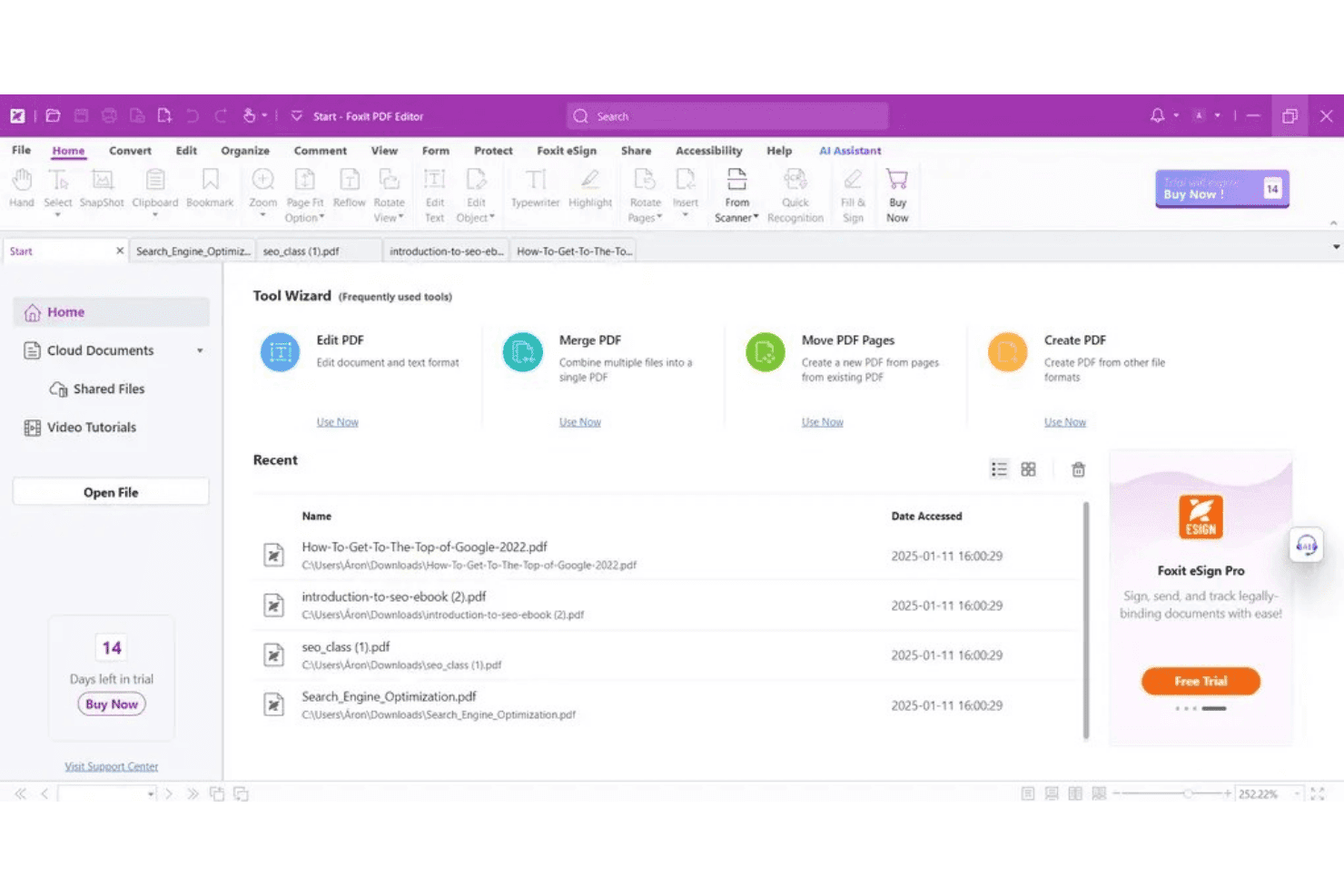
Foxit PDF Editor's home screen offers quick access to PDF tools. Foxit PDF Editor is a PDF editing and accessibility tool that combines built-in compliance checking against WCAG 2.0/2.1, PDF/UA-1, and Section 508 with autotag, tag editing, reading order correction, OCR, and redaction in a single desktop application.
Who Is Foxit PDF Editor Best For?
Foxit PDF Editor is a strong fit for law firms that run iManage or NetDocuments as their DMS and need accessibility remediation built into those existing workflows.
Why I Picked Foxit PDF Editor
I've included Foxit PDF Editor in my top picks because its native iManage and NetDocuments integrations let you run accessibility checks, apply autotag, and redact privileged content without ever pulling a document out of your DMS. That matters in law firms where chain of custody is non-negotiable. The Full Accessibility Check covers WCAG 2.0/2.1, PDF/UA-1, and Section 508, and its clickable issue report navigates directly to each problem location so paralegals can remediate without guesswork.
Foxit PDF Editor Key Features
- Full Accessibility Check: Scans PDFs against WCAG 2.0/2.1, PDF/UA-1, Section 508, ADA, and EN 301 549, producing a clickable report that navigates you directly to each failing element.
- Reading Order Tool (TURO): A visual drag-and-drop panel for resequencing content blocks, marking decorative elements as artifacts, and adding tags to untagged content.
- Action Wizard automation: Lets you build repeatable multi-step workflows—autotag, set language, set title, run compliance check—and apply them across batches of files from the desktop app.
- OCR integration: Converts scanned paper documents and image-based PDFs into searchable, taggable text so legacy legal files can be fully remediated for screen reader compatibility.
Foxit PDF Editor Integrations
Foxit PDF Editor offers native integrations with iManage Work, NetDocuments via ndOffice, and eDOCS. It also provides Foxit PDF Services API and Enterprise Automation connectivity for custom workflows across ECM, DMS, SAP, SharePoint, RPA platforms, and mail servers.
Pros and Cons
Pros:
- Strong reading order and tag editing tools
- Clickable reports navigate directly to issues
- Combines editing and accessibility in one tool
Cons:
- Batch checking requires separate enterprise products
- No WCAG 2.2 support documented
Learn more about Foxit PDF Editor: Best for WCAG and Section 508 PDF compliance checks
- Free demo available
- Pricing upon request
Visit WebsiteCustomer Rating:4.6/5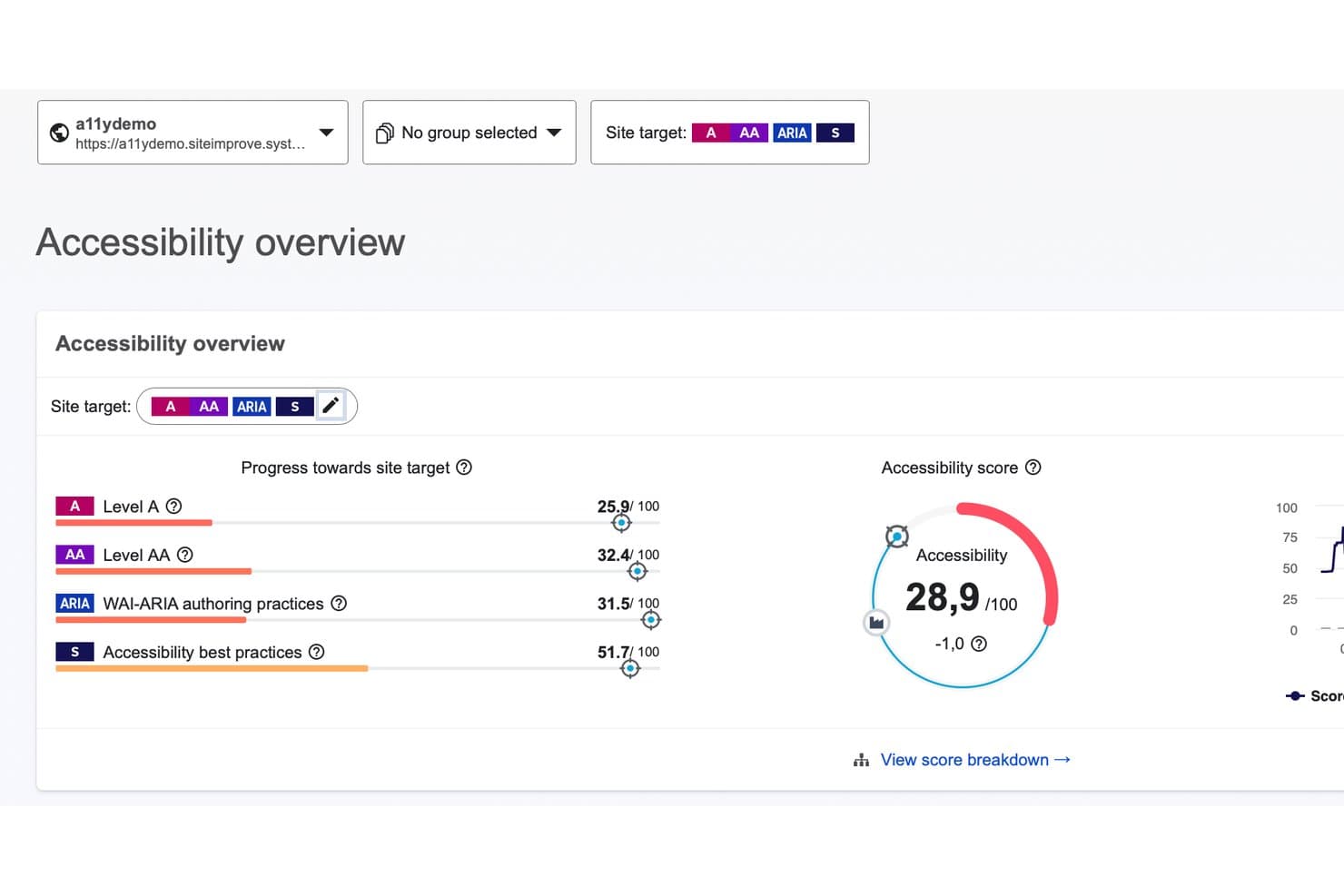
Siteimprove tracks accessibility scores across WCAG levels A, AA, ARIA, and best practices. Siteimprove is a web accessibility platform that scans and remediates PDFs against WCAG 2.0/2.1/2.2, PDF/UA, Section 508, ADA Title II, and the European Accessibility Act, with separate tools for pre-publication checking and live site PDF auditing.
Who Is Siteimprove Best For?
Siteimprove is a strong fit for legal compliance officers and web publishing teams who need to track PDF accessibility across multiple regulatory frameworks, including WCAG 2.2, Section 508, and ADA Title II, from a single platform.
Why I Picked Siteimprove
I've included Siteimprove in my top picks because it tests PDFs against more regulatory frameworks simultaneously than almost any other tool I've seen, covering WCAG 2.0, 2.1, and 2.2, PDF/UA, Section 508, ADA Title II, and the European Accessibility Act in one scan. I particularly like the two-stage workflow: PDF Validate catches issues before a document goes live, while PDF Audit continuously discovers and checks PDFs already published on your site. The AI-powered remediation agent can auto-tag an entire unstructured PDF from scratch and generate alt text suggestions you can edit inline before downloading the fixed file.
Siteimprove Key Features
- Compliance Tab dashboards: Filter accessibility issue reports by regulation—EAA, ADA Title II, or Section 508—and track progress month-by-month with a built-in trend chart.
- PDF Audit auto-discovery: Automatically finds and scans every PDF linked on your monitored website, giving you library-level coverage without manual uploads.
- Fix Gaps remediation mode: Preserves correctly tagged content in an existing PDF while filling in only the missing accessibility elements, such as alt text, metadata, and language settings.
- CSV export for audit reporting: Export regulation-filtered compliance data directly to CSV for internal audits or to share progress with stakeholders outside the platform.
Siteimprove Integrations
Siteimprove offers native integrations with Jira, Microsoft Azure DevOps, WordPress, Drupal, and Sitecore, plus CI/CD workflows and an open API for custom connections. It also supports Zapier, but no native legal DMS integrations are documented.
Pros and Cons
Pros:
- Offers regulation-filtered compliance dashboards
- Provides AI-powered alt text suggestions
- Tests against WCAG 2.2 and Section 508
Cons:
- No legal DMS or e-discovery integrations
- Limits batch upload to 10 PDFs
Learn more about Siteimprove: Best for AI-aided PDF remediation at enterprise scale
- Free demo available
- Pricing upon request
Visit WebsiteCustomer Rating:4.2/5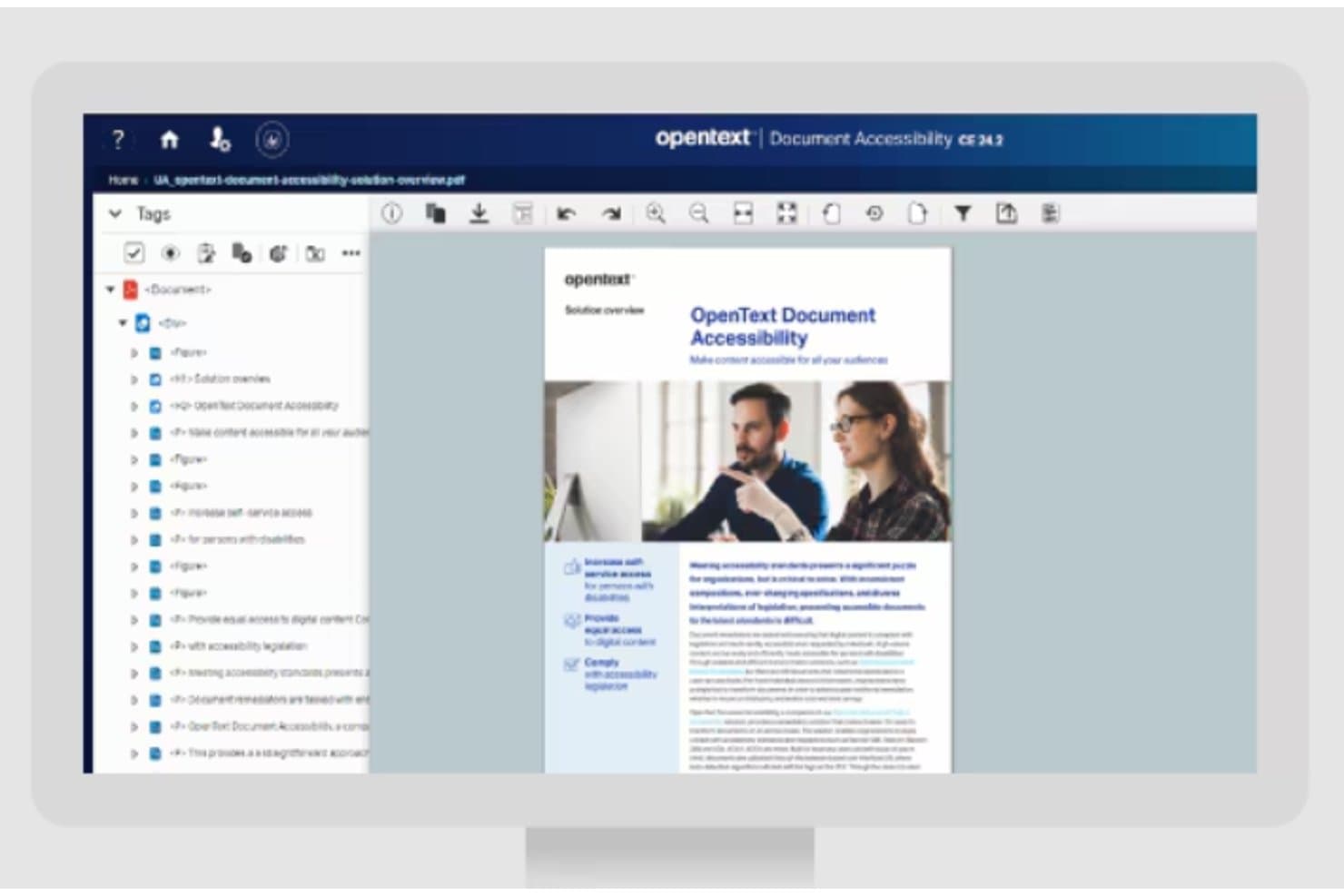
OpenText structures PDF tags for accessible document remediation. OpenText Document Accessibility is an AI-assisted PDF remediation and accessibility checking platform that covers WCAG, PDF/UA, Section 508, ADA, AODA, and EAA compliance, with tag editing, alt text automation, and high-volume batch processing via REST API.
Who Is OpenText Best For?
OpenText Document Accessibility is a strong fit for large corporate legal departments and government legal teams managing high volumes of PDFs across multiple accessibility compliance frameworks.
Why I Picked OpenText
I picked OpenText Document Accessibility because its AI AutoDetect engine handles the tagging heavy lifting at a scale that few tools can match. When you're processing thousands of PDFs across a corporate legal archive, the underlying Output Transformation Server handles high-volume batch remediation via REST API, while the Alternate Text Manager auto-applies alt text based on prior tagged content. The platform covers WCAG, PDF/UA, Section 508, ADA, AODA, and EAA in a single product, which matters when your compliance obligations span multiple jurisdictions.
OpenText Key Features
- Accessibility checker: A built-in validator that flags PDF/UA compliance issues and walks you through step-by-step remediation guidance for each identified problem.
- Custom ML model training: Train and refine auto-tagging models for specific document types, so recurring formats like contracts or briefs get more accurate tags over time.
- REST API with Open API/Swagger documentation: Embed accessibility checks and remediation into existing document workflows via a documented public API for pipeline-level automation.
- Multi-framework compliance coverage: Validates documents against WCAG, Section 508, ADA, AODA, and the European Accessibility Act from a single platform.
OpenText Document Accessibility Integrations
OpenText Document Accessibility has documented connections across the OpenText ecosystem, including Output Transformation Server, Documentum, AppEnhancer, Information Archive, OpenText Communications, and Content Cloud. It also supports OTDS, LDAP, GCP, AWS, on-premises, hybrid deployment, and REST API integrations.
Pros and Cons
Pros:
- Handles high-volume PDF remediation via API
- Custom machine learning models for document types
- AI AutoDetect engine reduces manual tagging
Cons:
- Requires OpenText Output Transformation Server setup
- No exportable VPAT or ACR conformance reports
Learn more about OpenText:
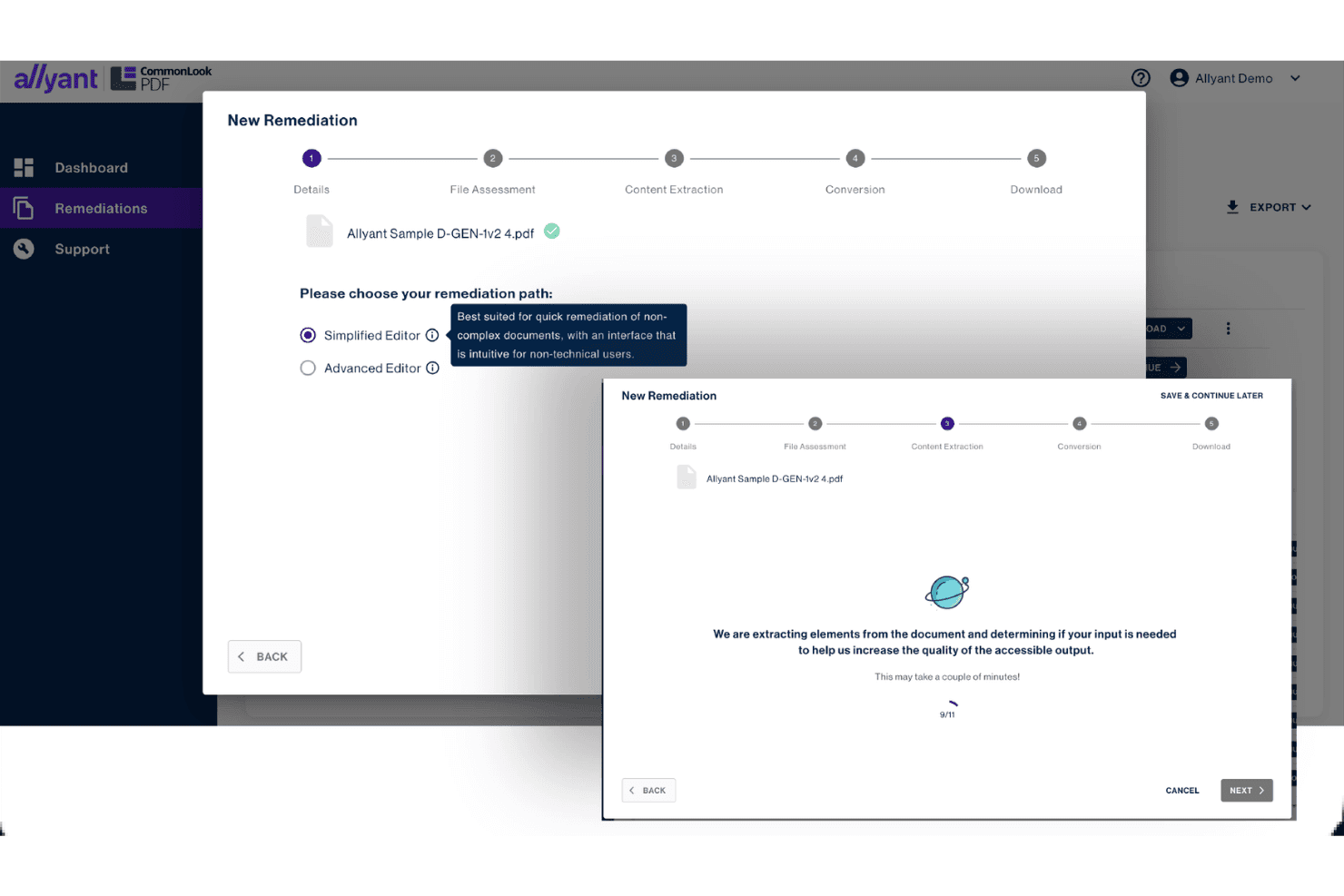
Allyant guides users through PDF remediation with step-by-step workflows. CommonLook Clarity by Allyant is an enterprise PDF accessibility scanning and monitoring tool that automatically discovers and tests PDFs across websites, intranets, and document repositories against WCAG, PDF/UA, Section 508, and HHS standards.
Who Is CommonLook Clarity Best For?
CommonLook Clarity is a strong fit for compliance officers and IT administrators in large organizations managing hundreds or thousands of PDFs across websites, intranets, and document repositories.
Why I Picked CommonLook Clarity
I've included CommonLook Clarity in my top picks because it's the only tool on this list built specifically for monitoring PDF accessibility at enterprise scale rather than checking files one at a time. It automatically discovers every pdf across your websites, intranets, and repositories, then tests each against WCAG 2.2 AA, PDF/UA, Section 508, and HHS standards simultaneously. I especially like its data-driven prioritization analytics, which surface your most-accessed or most non-compliant documents first so your team knows exactly where to focus remediation efforts.
CommonLook Clarity Key Features
- Continuous PDF monitoring: Clarity automatically re-scans newly published or modified PDFs on your websites, intranets, and portals to flag any that fall out of compliance.
- Multi-standard simultaneous testing: Each scan tests against WCAG 2.1/2.2 AA, PDF/UA, Section 508, and HHS guidelines in a single pass.
- Per-PDF compliance reports: Clarity generates individual audit trail reports for each document, showing pass/fail status against specific accessibility criteria.
- API/SDK integration support: Clarity exposes an API/SDK so your team can embed PDF scanning directly into existing workflows and platforms.
CommonLook Clarity Integrations
CommonLook Clarity integrates with CivicPlus Agenda and Meeting Management Select and supports API/SDK connections for custom workflows. It can scan PDFs stored across websites, intranets, portals, and document repositories, but native integrations with iManage, NetDocuments, Relativity, and Everlaw aren’t documented.
Pros and Cons
Pros:
- Prioritizes most-accessed inaccessible PDFs for review
- Supports WCAG 2.2, PDF/UA, 508, HHS
- Scans entire websites and repositories automatically
Cons:
- No VPAT or ACR export by default
- Does not provide built-in remediation tools
Learn more about Allyant: Best free PDF/UA validator for batch compliance checks
- Free plan available
- Free plan available
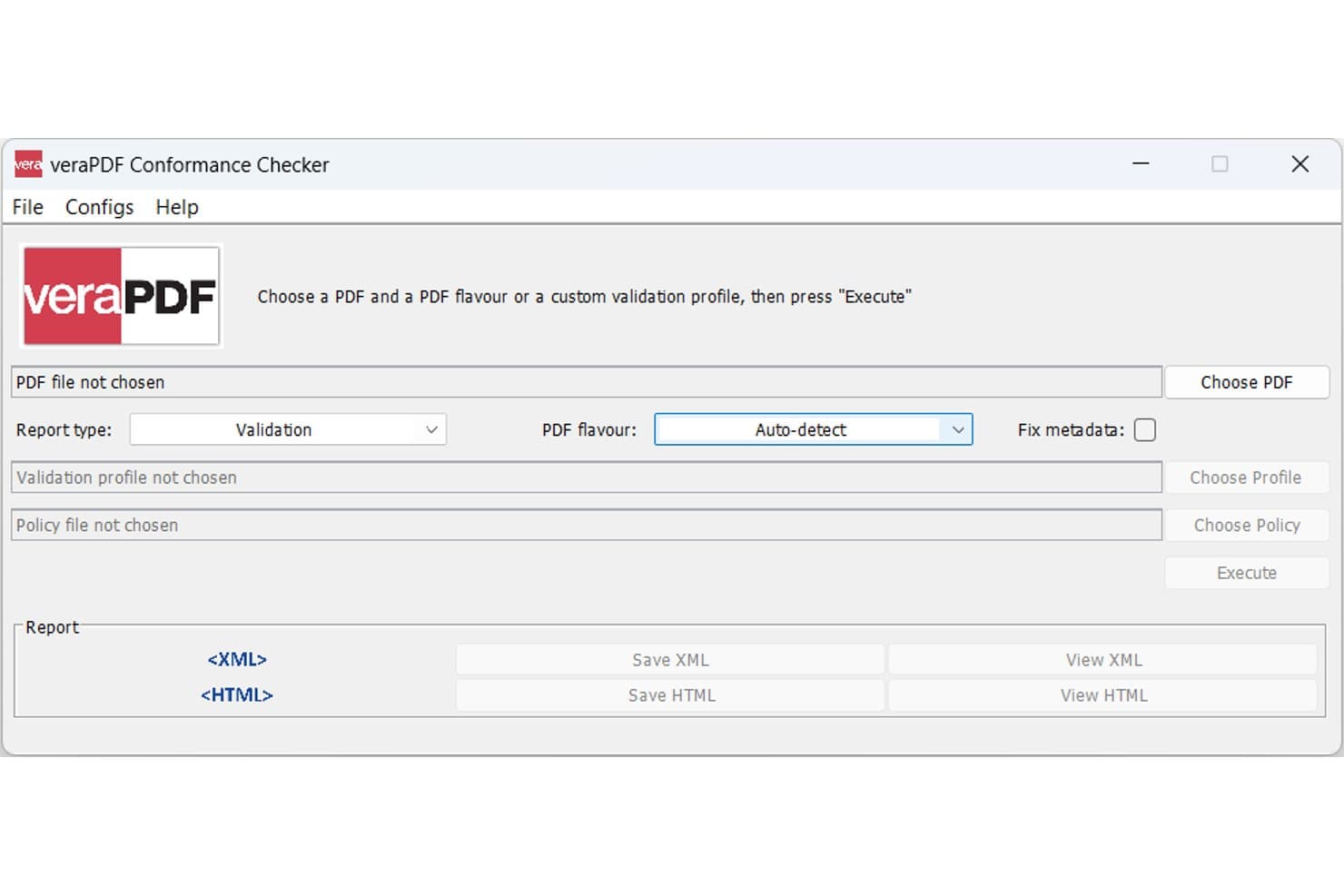
veraPDF lets users validate PDFs for accessibility conformance. veraPDF is a free, open-source PDF format validator that checks documents against PDF/UA-1, PDF/UA-2, PDF/A, and Well-Tagged PDF (WTPDF) standards using Matterhorn Protocol-based validation rules.
Who Is veraPDF Best For?
veraPDF is a strong fit for IT administrators and developers who need to run automated, large-scale PDF/UA compliance checks across document repositories without paying for a license.
Why I Picked veraPDF
I picked veraPDF as one of the best because it's the only open-source PDF/UA validator backed by the PDF Association and built on Matterhorn Protocol rules, making its findings technically defensible in a way most tools can't match. I've run it against entire document repositories using the CLI's recursive folder scanning, which processes nested subfolders and ZIP archives in a single command. Its PDF/UA-1, PDF/UA-2, and Well-Tagged PDF coverage is broader than most commercial validators.
veraPDF Key Features
- PDF/A multi-version validation: Validates all conformance levels across PDF/A-1, PDF/A-2, PDF/A-3, and PDF/A-4 in a single validation run.
- Policy checker with custom Schematron rules: Lets you write and apply institution-specific validation rules—such as required metadata fields or font restrictions—using a GUI-based Policy Creator wizard.
- Features extractor: Pulls detailed metadata on fonts, images, color spaces, and document properties independently of the standard validation pass.
- Docker container deployment: Official Docker images support CLI and REST-based validation in containerized environments, including CI/CD pipelines.
veraPDF Integrations
veraPDF supports custom integrations through its REST API and Java library, plus Docker deployments and GitHub Actions workflows. It also connects with PDFix and PDF4WCAG through products built on its validation engine.
Pros and Cons
Pros:
- Powerful CLI batch scanning for large repositories
- Fully open source and transparent rules
- Validates PDF/UA and all PDF/A levels
Cons:
- Lacks WCAG or Section 508 validation profiles
- No remediation beyond limited metadata fixing
Learn more about veraPDF: Best for expert-led PDF remediation as a service
- Free demo + 7-day free trial available
- From $490/year
Visit WebsiteCustomer Rating:4.8/5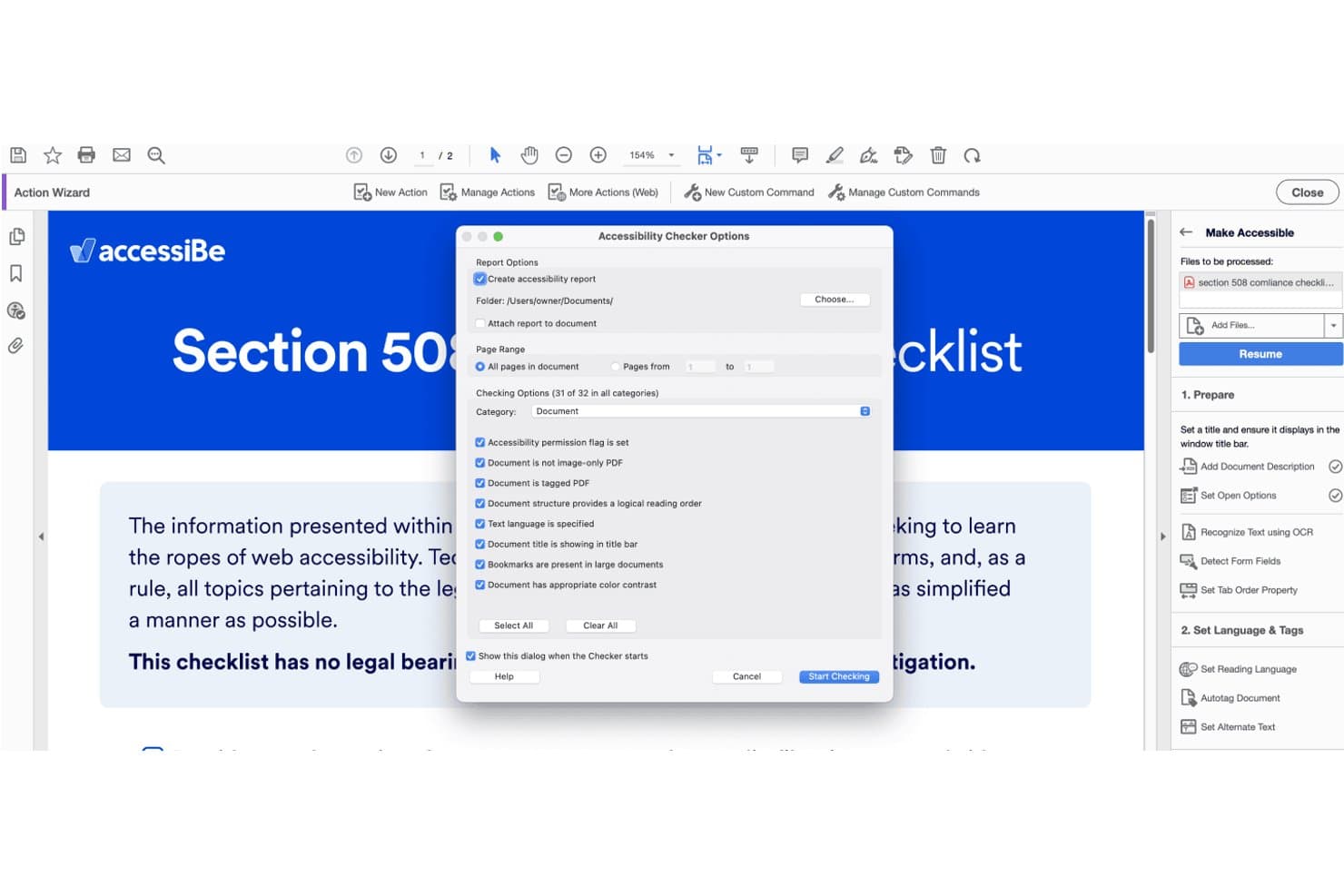
accessiBe's checker verifies 31 document accessibility criteria in Adobe Acrobat. accessiBe is a web and document accessibility platform that offers expert-led PDF remediation as a managed service, covering tagging, reading order correction, alt text, and conformance validation against WCAG 2.1 AA and PDF/UA standards.
Who Is accessiBe Best For?
accessiBe suits legal teams that need to outsource PDF remediation entirely, rather than run checks in-house.
Why I Picked accessiBe
I've included accessiBe in my top picks because it's the only option on this list that hands PDF remediation entirely to human experts rather than asking your team to operate a tool. When you submit files through the portal, specialists handle tagging, reading order correction, and alt text against WCAG 2.1 AA and PDF/UA standards, then return a per-file validation report you can use as audit documentation. I particularly like the expedited three-day turnaround option for deadline-sensitive situations.
accessiBe Key Features
- Multi-format document remediation: The file accessibility service covers PDFs, Word documents, Excel workbooks, PowerPoint presentations, and forms in a single submission.
- Multi-language remediation support: Experts remediate documents in multiple languages, including Arabic, Chinese, French, German, Turkish, and Urdu.
- VPAT and ACR preparation: A dedicated service produces Voluntary Product Accessibility Templates aligned with Section 508, WCAG 2.0/2.1/2.2, and EU/EN 301 549 frameworks.
- Volume discounts and annual subscription plans: Organizations with recurring or high-volume remediation needs can access reduced per-project rates through ongoing plan options.
accessiBe Integrations
accessiBe doesn't have any native integrations relevant to PDF accessibility workflows. Its documented integrations with Jira, Asana, ClickUp, Jenkins, CircleCI, and GitLab support accessFlow, the vendor's web accessibility tool.
Pros and Cons
Pros:
- Supports multi-language PDF remediation requests
- Accessibility validation report included with each file
- Human experts handle PDF remediation tasks
Cons:
- No interactive tools for tag structure review
- No self-service PDF accessibility checker
Learn more about accessiBe: Best for FedRAMP-covered PDF compliance audits
- Free demo available
- Pricing upon request
Visit WebsiteCustomer Rating:4.5/5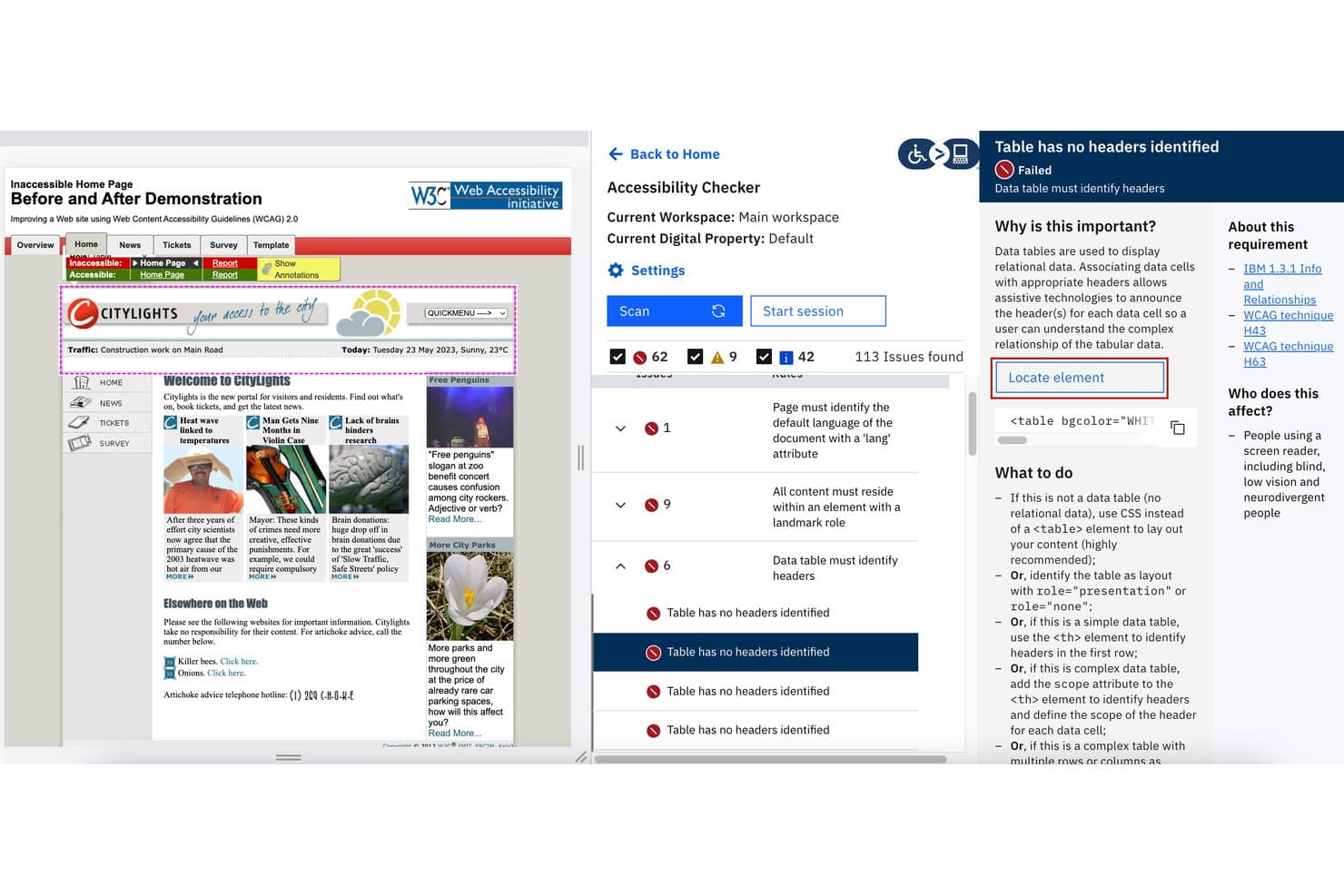
Level Access flags missing table headers and guides users to fix them. Level Access is an enterprise digital accessibility platform that combines automated PDF scanning, PDF/UA and WCAG testing, managed document remediation, and VPAT/ACR report generation in a single workflow.
Who Is Level Access Best For?
Level Access is a strong fit for large legal departments, government agencies, and court systems with Section 508 obligations and strict security requirements like FedRAMP authorization.
Why I Picked Level Access
Level Access earns its spot on my shortlist because it's the only PDF accessibility platform with a FedRAMP Low Impact SaaS Authorization to Operate, which matters enormously if your agency or court system is bound by federal security requirements. I picked it specifically for its built-in PDF checker, which crawls your site to auto-discover embedded PDFs, tests them against PDF/UA (ISO 14289) and Section 508, and lets you request managed remediation from the same interface. I also rely on the AI Reporting Agent to generate VPAT/ACR outputs filterable by standard and date range, which is exactly what you need to produce defensible audit documentation.
Level Access Key Features
- AI accessibility agents: AI-powered tools group duplicate issues, bulk-assign false positives, and generate natural language audit summaries across your scanned PDF inventory.
- Confidential scanning mode: Disables screenshots and limits saved data to HTML tags and attributes, keeping legally sensitive document content out of the platform's stored records.
- Standards-specific report filtering: The Reporting Agent lets you filter VPAT/ACR outputs by compliance standard—WCAG 2.1, Section 508, EN 301 549—and by date range for historical tracking.
- LevelDocs Office add-in: A Microsoft Office add-in for Word, PowerPoint, and Excel that applies rule-based tagging, heading wizards, and alt text wizards before exporting to accessible PDFs.
Level Access Integrations
Level Access has documented integrations with Jira, Azure Boards, GitHub, GitLab, Bitbucket, and Microsoft Office through LevelDocs. It also provides a REST API and webhooks for custom integrations and CI/CD workflows.
Pros and Cons
Pros:
- Generates VPAT and audit-ready reports
- Provides managed document remediation services
- Includes FedRAMP-authorized accessibility platform
Cons:
- Lacks direct PDF tag editing tools
- No legal document e-filing features
Learn more about Level Access: Best for AI-driven PDF tagging at legal scale
- 7-day free trial
- From $19.99/user/month (billed annually)
Visit WebsiteCustomer Rating:4.5/5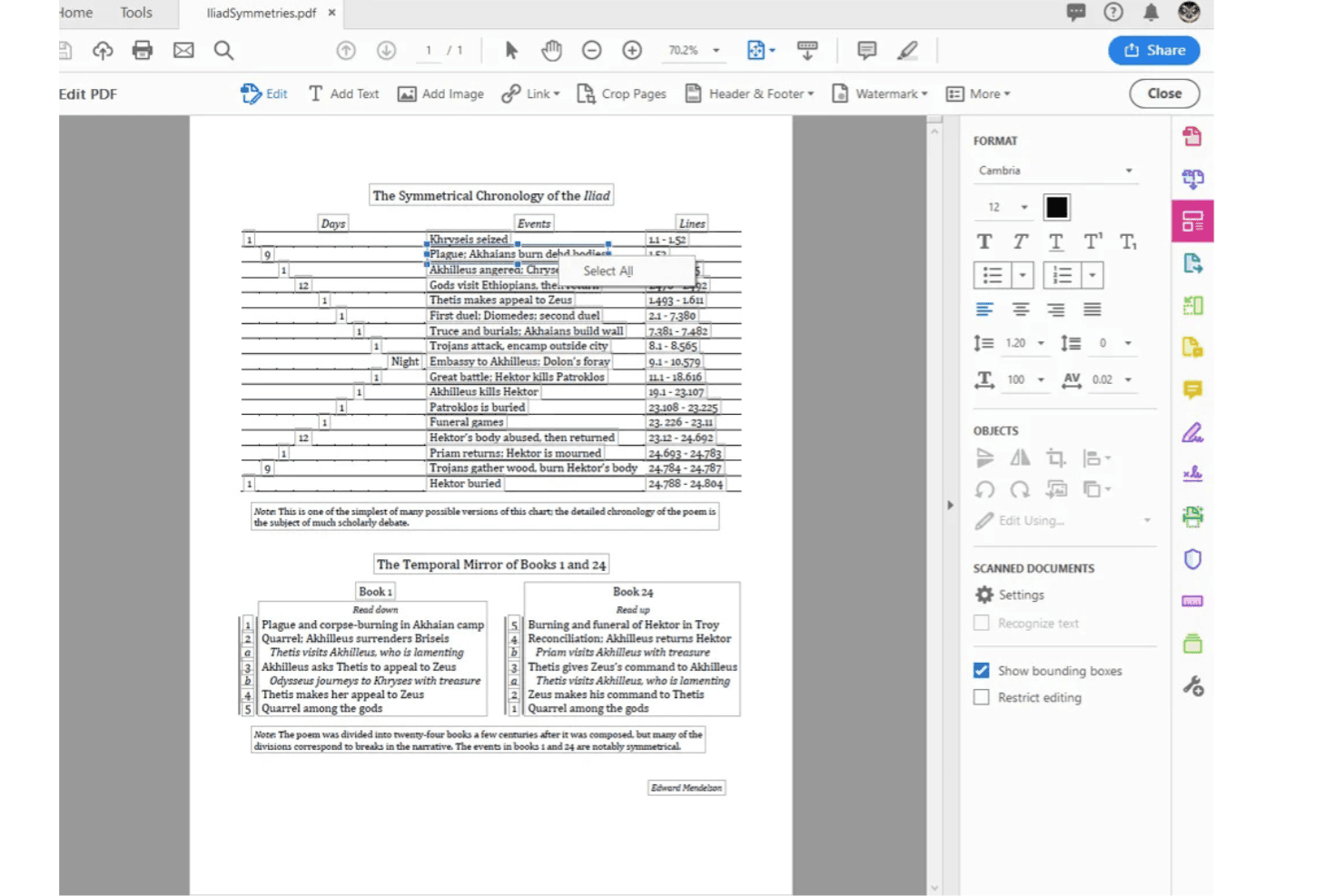
Adobe Acrobat lets users view and edit PDF documents with symmetry charts. Adobe Acrobat is a PDF platform that combines an accessibility checker, AI-powered auto-tagging, OCR, manual tag tree editing, and batch remediation tools to help you identify and fix accessibility issues across legal documents at scale.
Who Is Adobe Acrobat Best For?
Adobe Acrobat is a strong fit for legal operations teams and court systems that need to remediate large volumes of PDFs against PDF/UA and WCAG standards at scale.
Why I Picked Adobe Acrobat
Adobe Acrobat earns its spot on my shortlist because the PDF Accessibility Auto-Tag API, powered by Adobe Sensei AI, can process millions of documents at scale—one U.S. state court system runs 8 million compliant documents through it per year. I also rely on the Action Wizard for desktop batch remediation, which lets me apply OCR, auto-tagging, and document property fixes across entire folders in a single run. The built-in Accessibility Checker validates against PDF/UA (ISO 14289) and WCAG 2.0, covering the core standards that matter most in legal compliance contexts.
Adobe Acrobat Key Features
- Reading order tool: A visual editor that lets you adjust the sequence in which screen readers process content on each page.
- Permanent redaction: Lets you mark, preview, and permanently remove sensitive text or images from a PDF before sharing or filing.
- Bates numbering: Applies sequential numbering headers and footers across multiple PDFs in a single batch operation for legal document management.
- Microsoft Power Automate connector: Connects Acrobat's auto-tagging workflow to Microsoft 365 environments without requiring custom code.
Adobe Acrobat Integrations
Adobe Acrobat offers native integrations across the Microsoft ecosystem, including Microsoft 365, SharePoint, Teams, and Power Automate. It also connects with Google Drive, Dropbox, Box, Adobe Document Services APIs, and Adobe Experience Manager for custom accessibility workflows.
Pros and Cons
Pros:
- Built-in Bates numbering and permanent redaction tools
- Batch processing supports complex legal workflows
- AI auto-tagging can handle large PDF volumes
Cons:
- No VPAT or ACR-style report export
- Accessibility checker does not cover WCAG 2.2
Learn more about Adobe Acrobat: Best for court and judicial PDF compliance
- Free plan available
- From $599/user/year
Visit WebsiteCustomer Rating:5/5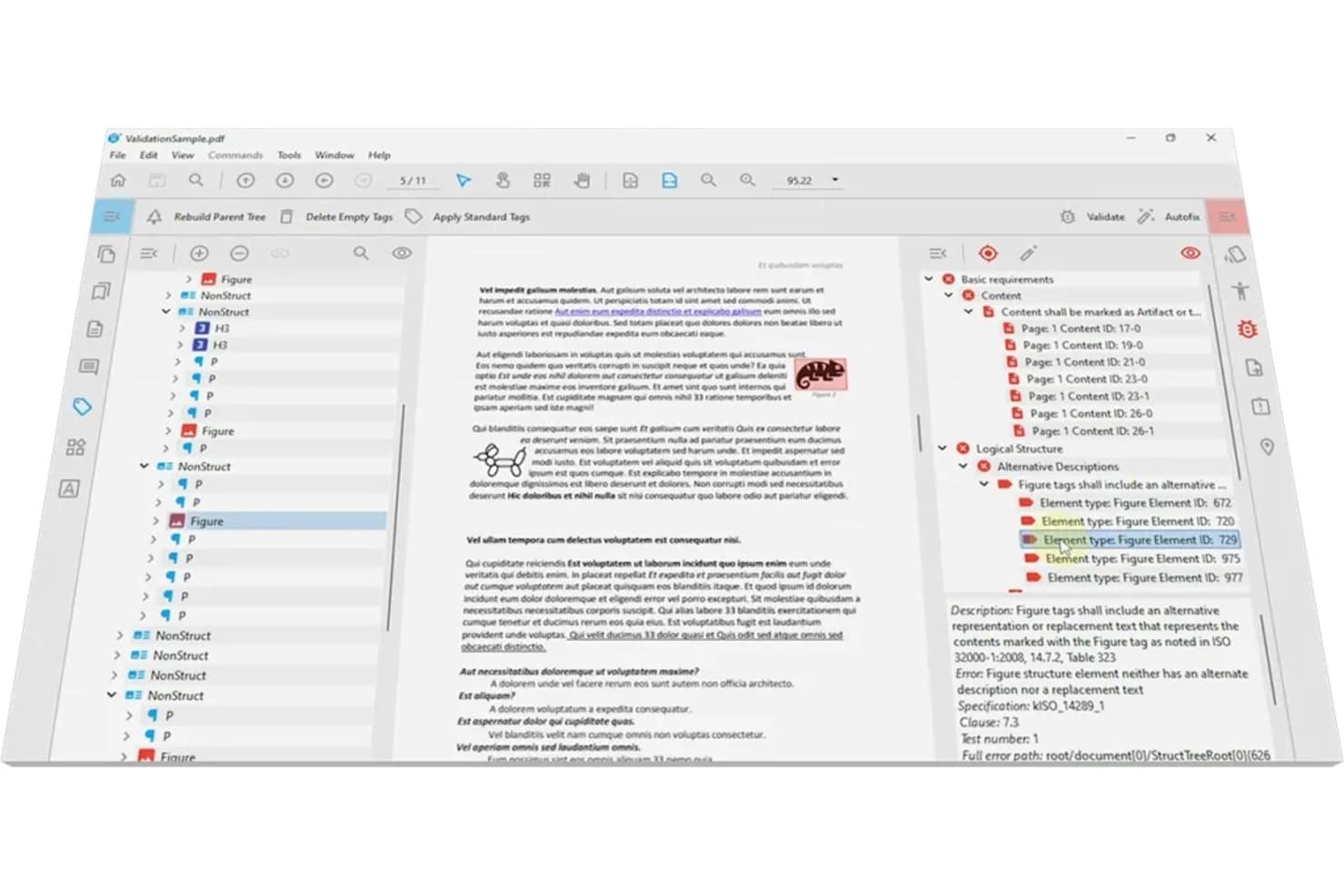
PDFix flags missing alt text on figures during PDF/UA validation. PDFix is a PDF accessibility checker and remediation tool that validates documents against WCAG 2.1/2.2, PDF/UA, Section 508, ADA Title II, and EAA standards, with AI-powered auto-tagging, batch processing, and on-premises deployment.
Who Is PDFix Best For?
PDFix is a strong fit for court systems and government agencies that process high volumes of judicial documents and need on-premises accessibility compliance.
Why I Picked PDFix
I've included PDFix in my top picks because of its documented deployment with the California Judicial Department, where it processes judicial documents across 58 courts at a rate of 4.8 million cases per year. I love that it runs fully on-premises, so sensitive case files never leave your network. Its on-premises AI auto-tagging and veraPDF-backed Section 508 and PDF/UA validation make it a natural fit for court systems processing high volumes of legally sensitive documents.
PDFix Key Features
- AI-powered auto-tagging: Four distinct auto-tagging methods let you apply IBM Docling, PaddleX, OpenAI, or BLIP to automatically tag complex document layouts, including multi-column and image-heavy files.
- JSON-based layout templates: Create reusable tagging rules based on font, size, position, and content patterns, then apply them automatically across thousands of recurring document types.
- veraPDF validation engine: Tests documents against all 136 Matterhorn Protocol failure conditions, covering WCAG 2.1/2.2, PDF/UA-1/2, Section 508, ADA Title II, and EAA standards.
- Multi-format report export: Exports validation reports in HTML, XML, and JSON, with per-issue error navigation that links directly to the offending element in the document.
PDFix Integrations
PDFix integrates with IBM Docling, PaddleX, Amazon Textract, OpenAI, Salesforce BLIP, veraPDF, and Enfocus. Its SDK supports Python, C#, Java, C++, and Node.js, with Docker, Kubernetes, GitHub Actions, and GitLab CI/CD connectivity for custom workflows.
Pros and Cons
Pros:
- Runs natively on Windows, macOS, and Linux
- Exports granular, machine-readable PDF accessibility reports
- Performs on-premises compliance for judicial records
Cons:
- Does not generate VPAT or ACR reports
- Lacks out-of-the-box legal DMS integration
Learn more about PDFix: 10Best for AI-driven PDF tagging at scale
PREP
- Free demo available
- Pricing upon request
Visit WebsiteCustomer Rating:5/5
PREP offers fast, scalable document remediation for accessibility. PREP is a browser-based PDF accessibility checker and remediation platform that uses AI auto-tagging, built-in OCR, and a compliance checker covering WCAG 2.2, PDF/UA, Section 508, and ADA Title II to identify and fix accessibility issues across large document volumes.
Who Is PREP Best For?
PREP is a strong fit for enterprise legal and compliance teams managing large backlogs of scanned or legacy PDFs that need to meet ADA Title II, Section 508, or WCAG 2.2 standards at scale.
Why I Picked PREP
I picked PREP as one of the best because its AI auto-tagging engine handles the kind of volume that breaks manual workflows: think thousands of scanned legacy PDFs processed via the REST API, with 90%+ of tagging automated within seconds of upload. I also like that the built-in OCR covers documents that were never digitally created, which is a real gap most checkers ignore. The compliance checker runs against WCAG 2.2, PDF/UA, Section 508, and ADA Title II in a single pass.
PREP Key Features
- Multi-standard compliance checker: Test documents against WCAG 2.2, PDF/UA, Section 508, ADA Title II, EAA, and AODA in a single remediation pass.
- Screen reader side-by-side preview: View actual text alongside alt text in real time to validate structural output before exporting a final document.
- Reusable tag templates: Apply saved tag templates across recurring document types with one-click bulk remediation for consistent, repeatable results.
- Managed remediation service: Request outsourced remediation from IAAP-certified specialists directly on-platform for documents your team can't handle in-house.
PREP Integrations
PREP has documented integrations with Canvas and D2L Brightspace. Its REST APIs support custom connections with CMS, DMS, and internal platforms, although named legal DMS integrations such as iManage and NetDocuments aren't documented.
Pros and Cons
Pros:
- Side-by-side screen reader preview feature
- Wide compliance with global accessibility standards
- AI auto-tagging covers scanned PDFs quickly
Cons:
- Dedicated legal DMS integrations not available
- No chain-of-custody or audit trail logging
Learn more about PREP:
Andre tilgjengelighetskontroller for PDF
\u003cspan style=\u0022font-weight: 400\u0022\u003eHer er noen flere alternativer for kontroll av PDF-tilgjengelighet som ikke kom med på kortlisten, men som likevel er verdt å se nærmere på:\u003c/span\u003e
- 11EquidoxBest for scanned legal PDFs needing on-prem remediation
- 12GrackleDocsBest for AI-assisted PDF accessibility fixes
- 13PaveBest for free PDF/UA checks on non-sensitive docs
- 14PAC (PDF Accessibility Checker)Best free offline PDF/UA validator for legal files
How I Evaluate PDF Accessibility Checkers
I split my evaluation into baseline functionality every tool must cover and the differentiators—like redaction-aware remediation and DMS integration—that separate a genuinely useful legal tool from a generic checker.
Core Functionality (Table Stakes for This List)
When I'm selecting tools for my list, I rank each one on a scale from 0 (does not offer the functionality) to 5 (excels in this area) for each core functionality listed below. I then calculate the tool's total score into a percentage, using 65% as a benchmark to help assess its overall fit for the list.
- WCAG/PDF-UA Testing: I check whether the tool tests against WCAG 2.1 or 2.2, PDF/UA, and Section 508—all three matter when court filings and client documents need to hold up under ADA scrutiny.
- Detailed Issue Reporting: Reports should pinpoint each failure by page, element, and severity so a paralegal can locate a mistagged heading in a 200-page contract without guessing.
- Remediation Capabilities: I look for built-in fixes for tags, alt text, reading order, and metadata—plus OCR support for scanned case files that arrive as image-only PDFs.
- Tag & Structure Analysis: The tool needs to validate the full tag tree, including tables, lists, and heading hierarchy, since a broken reading order in a brief can change how a screen reader presents arguments.
- Batch Processing: I evaluate how the tool handles volume—watched folders, API access, or scheduled jobs—because a records team filing hundreds of PDFs per week can't process them one at a time.
- Conformance Report Export: Exportable, audit-ready reports aligned with VPAT or ACR formats matter here, especially when compliance officers need documentation for regulators or opposing counsel.
Once I have a list of tools that meet the criteria, I consider what sets each platform apart.
Differentiating Factors (What Sets Vendors Apart)
Here's how I compare and contrast different vendors:
Standout Features
I check whether a tool preserves Bates numbering and evidentiary markings during remediation—one misplaced tag fix that strips a Bates stamp can derail discovery production. Redaction-aware remediation matters just as much, since OCR and tagging passes that ignore existing redactions risk exposing privileged content. I also evaluate audit trail logging, looking for a chain-of-custody record of every action, user, and timestamp that holds up during ADA or Title II compliance reviews.
Beyond Features
I evaluate whether a tool connects to the DMS your firm already runs—iManage, NetDocuments, or SharePoint—since a checker that can't pull files from your matter workspace adds manual steps paralegals won't sustain. Security posture matters just as much: I look for AES-256 encryption, SOC 2 Type II attestation, and on-prem deployment options, especially when processing privilege-heavy litigation exhibits. I also check licensing flexibility, because a solo paralegal and a multi-office AmLaw firm need very different volume models.
Slik velger du en tilgjengelighetskontroll for PDF
Å finne en tilgjengelighetskontroll for PDF som passer for firmaet ditt, avhenger av mer enn funksjonslister: Det som betyr noe, er hvor godt et verktøy håndterer dokumentene, samsvarsforpliktelsene og integrasjonspunktene dine.
| Hvis prioriteten din er ... | Se etter ... |
| Samsvar med domstolers og tilsynsmyndigheters krav | WCAG 2.1/2.2, PDF/UA og dekning av Section 508 |
| Integrasjon med juridiske DMS-er | Innebygd støtte for iManage, NetDocuments eller SharePoint |
| Store mengder eller eldre skannede dokumenter | OCR og satsvis utbedring for dokumenter som bare består av bilder |
| Datasikkerhet og personvern | Distribusjonsalternativer lokalt eller som er kompatible med FedRAMP |
| Minimalt manuelt arbeid | AI-drevet tagging og utbedring med revisjonsspor |
Slik vurderer du kortlisten
- Test med en prøveinnlevering til domstolen: Send inn et skannet prosesskriv på mer enn 100 sider, og krev en samsvarsrapport som viser til mislykkede kontrollpunkter i WCAG, PDF/UA og Section 508.
- Be om dokumentasjon på integrasjon: Be om en demonstrasjon eller dokumentasjon som viser direkte henting og sending fra din juridiske DMS (iManage, NetDocuments eller SharePoint), fullført innen én uke.
- Kontroller utbedringsprosessen: Lever en fil med sladdinger og Bates-numre for prøveutbedring – bekreft at disse bevares i resultatet.
- Sikkerhetsdokumentasjon: Be om dokumentasjon på SOC 2, AES-256 eller FedRAMP, og vurder om den samsvarer med personvernreglene til firmaet ditt.
- Avveining du bør vurdere: Velg mellom AI-drevet satsvis utbedring for høy hastighet i stor skala og en administrert tjeneste eller ekspertgjennomgang for dokumenter i særtilfeller som trenger manuelt tilsyn.
Hva er tilgjengelighetskontrollere for PDF?
Tilgjengelighetskontrollere for PDF er verktøy som skanner og evaluerer PDF-dokumenter for samsvar med juridiske standarder og brukervennlighetsstandarder som WCAG, Section 508 og PDF/UA. Disse verktøyene hjelper deg med å identifisere problemer som kan hindre brukere med funksjonsnedsettelser i å få tilgang til dokumentinnhold. Bruk av en tilgjengelighetskontroller for PDF er et viktig trinn i utarbeidelsen av juridiske dokumenter, risikostyring og opprettholdelse av forskriftsmessig samsvar i hele dokumentarbeidsflyten.
Funksjoner i tilgjengelighetskontrollere for PDF
Når du velger tilgjengelighetskontrollere for PDF, bør du se etter følgende viktige funksjoner:
- Samsvarstesting mot WCAG/PDF-UA: Evaluerer PDF-filer opp mot viktige tilgjengelighetsstandarder som WCAG 2.1, PDF/UA og Section 508, slik at dokumentene dine kan brukes av personer med funksjonsnedsettelser og oppfyller forskriftskravene.
- Detaljert rapportering av problemer: Angir hvert tilgjengelighetsproblem etter sidetall, element og alvorlighetsgrad, slik at du vet nøyaktig hvor du skal rette opp problemer uten å måtte gjette.
- Verktøy for utbedring: Tilbyr innebygde alternativer for å løse vanlige problemer med tagging, alternativ tekst, leserekkefølge og metadata direkte i programvaren, noe som gjør det enklere å håndtere problemer uten å eksportere til et annet verktøy.
- Analyse av tagger og struktur: Kontrollerer og validerer PDF-filens taggtre, inkludert tabeller, lister og overskriftshierarkier, slik at skjermlesere tolker dokumentet i riktig rekkefølge og sammenheng.
- Batchbehandling: Lar deg skanne og utbedre flere PDF-filer samtidig ved hjelp av overvåkede mapper eller planlagte jobber, noe som sparer tid for team som håndterer store mengder dokumenter.
- Eksport av samsvarsrapporter: Genererer detaljerte, revisjonsklare rapporter – ofte i VPAT- eller ACR-format – som dokumenterer fremdriften i samsvarsarbeidet for tilsynsmyndigheter eller interne gjennomganger.
- OCR-støtte for skannede filer: Konverterer PDF-filer som bare inneholder bilder, til søkbar og tilgjengelig tekst, slik at du kan bringe gamle eller skannede dokumenter i samsvar uten manuell omskriving.
- Bevaring av juridiske artefakter: Sikrer at funksjoner som Bates-numre, sladdinger og bevisstempler forblir intakte gjennom prosessen med tilgjengelighetsutbedring, slik at dokumentets integritet opprettholdes for juridiske formål.
- Logging av revisjonsspor: Sporer endringer, brukeraktivitet og utbedringstrinn for hvert dokument, og oppretter en etterprøvbar oversikt for samsvarsgjennomganger eller innsigelser.
- Integrasjon med juridiske DMS: Kobler seg direkte til systemer som iManage, NetDocuments eller SharePoint, slik at team kan kontrollere og utbedre dokumenter uten å duplisere filer eller bryte etablerte arbeidsflyter.
Vanlige AI-funksjoner i tilgjengelighetskontrollere for PDF
I tillegg til standardfunksjonene for tilgjengelighetskontrollere for PDF som er oppført ovenfor, tar mange av disse løsningene i bruk AI med funksjoner som:
- AI-drevet forslag til tagger: Bruker maskinlæring til å analysere dokumentstrukturen og automatisk anbefale nøyaktige tagger for overskrifter, tabeller, lister og andre elementer. Dette reduserer behovet for manuell tagging og bidrar til å sikre at dokumenter er riktig strukturert for skjermlesere.
- Automatisk korrigering av leserekkefølge: Bruker AI til å oppdage og korrigere feil leserekkefølge i komplekse PDF-filer eller PDF-filer med flere kolonner. Verktøyet forutsier logisk flyt basert på innholdsmønstre, noe som gjør dokumentene enklere å navigere i for hjelpeteknologier.
- Intelligent generering av alternativ tekst: Utnytter AI til å skanne bilder og generere beskrivende alternativ tekst, slik at team raskt kan håndtere manglende alternativ tekst i store mengder dokumenter uten manuell gjennomgang.
- Utbedringsanbefalinger med kontekstforståelse: Bruker AI til å identifisere ikke bare feil, men også de beste utbedringstrinnene basert på dokumenttype, juridisk kontekst og tidligere brukerhandlinger. Dette veileder brukerne mot løsninger som samsvarer med kravene til tilgjengelighet og dokumentets formål.
- Forutsigende poengberegning av samsvarsrisiko: Benytter AI-modeller til å vurdere sannsynligheten for at et dokument ikke vil bestå tilgjengelighetsrevisjoner, markerer filer med høy risiko og prioriterer dem for gjennomgang eller utbedring.
- Rapportsammendrag i naturlig språk: Genererer lettfattelige sammendrag av tilgjengelighetsrapporter ved hjelp av AI, noe som gjør det enklere for juridiske team og ikke-tekniske interessenter å forstå samsvarsstatus og neste trinn.
Fordeler med tilgjengelighetskontrollere for PDF
Implementering av tilgjengelighetskontrollere for PDF gir flere fordeler for teamet og virksomheten din. Her er noen av fordelene du kan se frem til:
- Konsekvent juridisk samsvar: Sørg for at dokumentene dine oppfyller standardene WCAG 2.1, PDF/UA og Section 508, og reduser risikoen under rettslige innleveringer og tilsynsrevisjoner.
- Detaljert identifisering av problemer: Finn bestemte tilgjengelighetsproblemer etter side, element og alvorlighetsgrad, slik at teamet ditt kan utbedre dem med sikkerhet og nøyaktighet.
- Raskere arbeidsflyter for utbedring: Bruk innebygde utbedringsverktøy, inkludert AI-drevne forslag til tagger og massebehandling, for å løse dokumentproblemer uten manuell tagging.
- Bevaring av juridiske elementer: Bevar Bates-numre, sladdinger og bevismerking gjennom hele utbedringen, slik at dokumentene opprettholder sin juridiske integritet.
- Søkbare og tilgjengelige skannede filer: Konverter PDF-filer som kun inneholder bilder, til tilgjengelig og søkbar tekst ved hjelp av OCR-støtte, slik at eldre dokumenter blir i samsvar med kravene.
- Dokumentasjon klar for revisjon: Generer eksporterbare rapporter i VPAT- eller ACR-format, som gir tydelig dokumentasjon på samsvar for interne gjennomganger eller eksterne tilsynsmyndigheter.
- Integrasjon med juridiske dokumentsystemer: Koble direkte til DMS-plattformer som iManage, NetDocuments eller SharePoint, slik at du kan kontrollere og utbedre filer i de eksisterende arbeidsflytene dine.
Kostnader og priser for kontrollverktøy for PDF-tilgjengelighet
Når du velger kontrollverktøy for PDF-tilgjengelighet, må du forstå de ulike prismodellene og abonnementene som er tilgjengelige. Kostnadene varierer basert på funksjoner, teamstørrelse, tillegg og mer. Tabellen nedenfor oppsummerer vanlige abonnementer, gjennomsnittsprisene deres og typiske funksjoner som er inkludert i løsninger for kontroll av PDF-tilgjengelighet:
Sammenligningstabell for abonnementer for kontrollverktøy for PDF-tilgjengelighet
| Abonnementstype | Gjennomsnittspris | Vanlige funksjoner |
| Gratisabonnement | $0 | Grunnleggende PDF/UA-kontroller, begrensede WCAG-samsvarsrapporter, opplasting av enkeltstående dokumenter og ingen massebehandling. |
| Personlig abonnement | $10–$30/måned | Grunnleggende tilgjengelighetsskanninger, eksport av individuelle rapporter, grunnleggende utbedringsverktøy og begrenset masseopplasting. |
| Bedriftsabonnement | $50–$150/bruker/måned | Fullstendig WCAG- og PDF/UA-testing, detaljerte samsvarsrapporter, massebehandling, moderat integrasjon med DMS og grunnleggende revisjonsspor. |
| Storbedriftsabonnement | $200–$600+/måned | Ubegrenset dokumentvolum, avanserte utbedringsverktøy, DMS- og API-integrasjoner, eksportalternativer klare for revisjon, robust sikkerhet og revisjonslogger. |