
Programvare for PDF-tilrettelegging utbedrer utilgjengelige PDF-filer slik at de oppfyller juridiske krav og tilgjengelighetsstandarder for domstoler, klienter og tilsynsmyndigheter. Hvis du leter etter de beste verktøyene for PDF-tilrettelegging, må du sannsynligvis håndtere krav om etterlevelse, stramme arbeidsflyter og en bunke juridiske dokumenter som må gjøres tilgjengelige innen fristen. Jeg har brukt flere tiår på å løse disse utfordringene sammen med advokatfirmaer og juridiske driftsteam, så jeg vet at riktig programvare kan utgjøre forskjellen mellom etterlevelse som er klar for revisjon, og unødvendig risiko. Jeg skal vise deg de beste løsningene jeg stoler på for batchbehandling, rapportering på revisjonsnivå og sømløs integrasjon i juridiske arbeidsflyter – slik at du kan velge et verktøy som oppfyller de reelle kravene i praksis.
Hvorfor du kan stole på våre programvareanbefalinger
6,700+
Reviews
20
Industry experts
16+
Evaluation factors
14
Years
Teamet vårt har testet og anmeldt programvare siden 2012. Vi leder selv advokatfirmaer, så vi vet hvor vanskelig og hvor viktig det er å velge riktig programvare.
I denne guiden har vi vurdert verktøyene gjennom praktisk testing og uavhengig research og gitt dem poeng ut fra våre utvelgelseskriterier.
Anmeldelsene våre bygger på vår egen redaksjonelle vurdering. De er ikke et salgsargument.
Sammenligningstabell for programvare for PDF-tilrettelegging
Denne sammenligningstabellen fremhever prisdetaljer for min beste programvare for PDF-tilrettelegging innen familierett.
| Tool | Best For | Trial Info | Price | ||
|---|---|---|---|---|---|
| 1 | Best for developer-built PDF/UA compliance pipelines | 30-day free trial | Pricing upon request | Website | |
| 2 | Best for on-prem PDF accessibility compliance | Free demo available | Pricing upon request | Website | |
| 3 | Best for scaling PDF/UA compliance via API | 14-day free trial | Pricing upon request | Website | |
| 4 | Best for high-volume compliance across regulated docs | Not available | Pricing upon request | Website | |
| 5 | Best for audit-ready batch compliance certificates | Free trial available (100 pages) | From $0.30/page | Website | |
| 6 | Best for legal PDF batch compliance at scale | 7-day free trial | From $19.99/user/month (billed annually) | Website | |
| 7 | Best for compliance-grade multi-standard auditing | Free trial available | Pricing upon request | Website | |
| 8 | Best for on-premises government-scale remediation | Free plan available | From $599/user/year | Website | |
| 9 | Best for multi-standard compliance at scale | Free demo available | Pricing upon request | Website | |
| 10 | Best for high-volume, standards-driven PDF compliance | 7-day free trial + free demo available | Pricing upon request | Website |


Anmeldelser av programvare for PDF-tilrettelegging
Nedenfor finner du mine detaljerte sammendrag av den beste programvaren for PDF-tilrettelegging som kom med på kortlisten min. Anmeldelsene mine gir en detaljert gjennomgang av funksjonene, de beste bruksområdene og egenskapene til hver programvare, slik at du kan finne den som passer best for deg.
 Best for developer-built PDF/UA compliance pipelines
- 30-day free trial
- Pricing upon request
Visit WebsiteCustomer Rating:4.2/5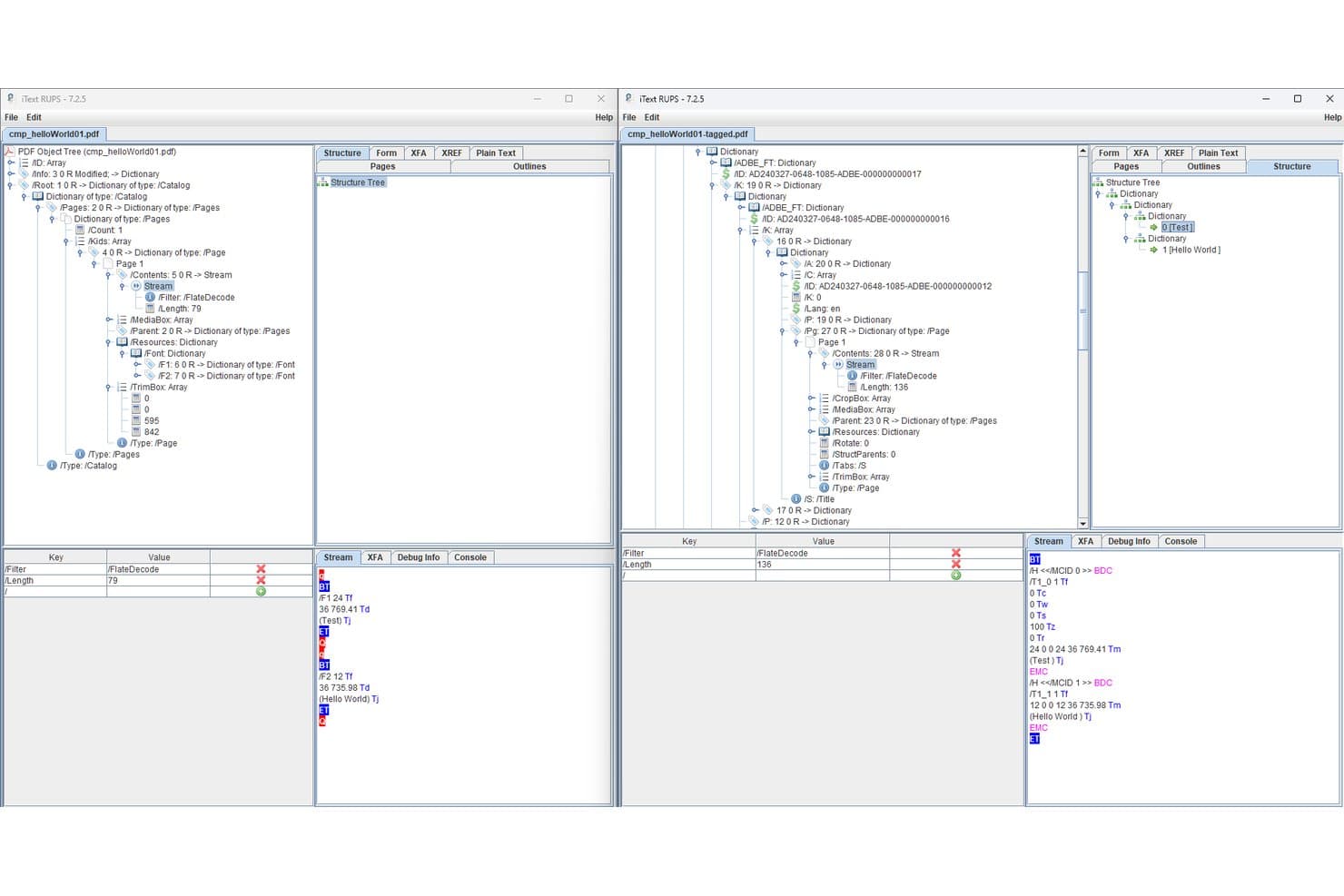
iText lets users compare tagged and untagged PDF structures side by side. iText is a PDF SDK that lets developers programmatically generate, tag, and validate accessible PDFs against PDF/UA-1, PDF/UA-2, Section 508, and ADA standards, with add-ons for OCR, redaction, and XFA form flattening.
Who Is iText Best For?
iText is the right fit for law firm IT teams and developers who need to build custom, high-volume PDF/UA compliance pipelines with full on-premise data control.
Why I Picked iText
I picked iText as one of the best because it's the only PDF SDK I know of that supports both PDF/UA-1 and the newest PDF/UA-2 (ISO 14289-2:2024) standard, with automatic Matterhorn Protocol validation built directly into the document generation process. Law firm IT teams can script fully automated remediation pipelines in Java or .NET that process multi-gigabyte document volumes without routing files through third-party servers, which matters when you're handling privileged material.
iText Key Features
- pdfSweep redaction: Permanently removes text, images, and drawing regions from PDFs using regex pattern matching or coordinate-defined areas.
- pdfOCR text recognition: Converts scanned PDFs and images into searchable, structured PDF/A-3u files using ONNX AI or Tesseract 4 engines.
- Dual PDF/A and PDF/UA conformance: Generates PDFs that simultaneously meet both archival (PDF/A) and accessibility (PDF/UA) standards in a single document output.
- pdfXFA form flattening: Converts dynamic XFA forms embedded in PDFs into static, accessible AcroForm-compatible documents.
iText Integrations
iText supports custom integrations through Java/.NET APIs and a REST API deployment available through AWS Marketplace. Its documented connectivity includes HTML/CSS through pdfHTML and Microsoft Office through pdfOffice; native legal DMS connectors aren't documented.
Pros and Cons
Pros:
- Enables on-premise, privacy-focused deployments
- Fully automates high-volume remediation pipelines
- Deepest standards compliance supports PDF/UA-2
Cons:
- Oriented toward creating, not remediating PDFs
- No GUI or visual tag tree editor
Learn more about iText: Best for on-prem PDF accessibility compliance
- Free demo available
- Pricing upon request
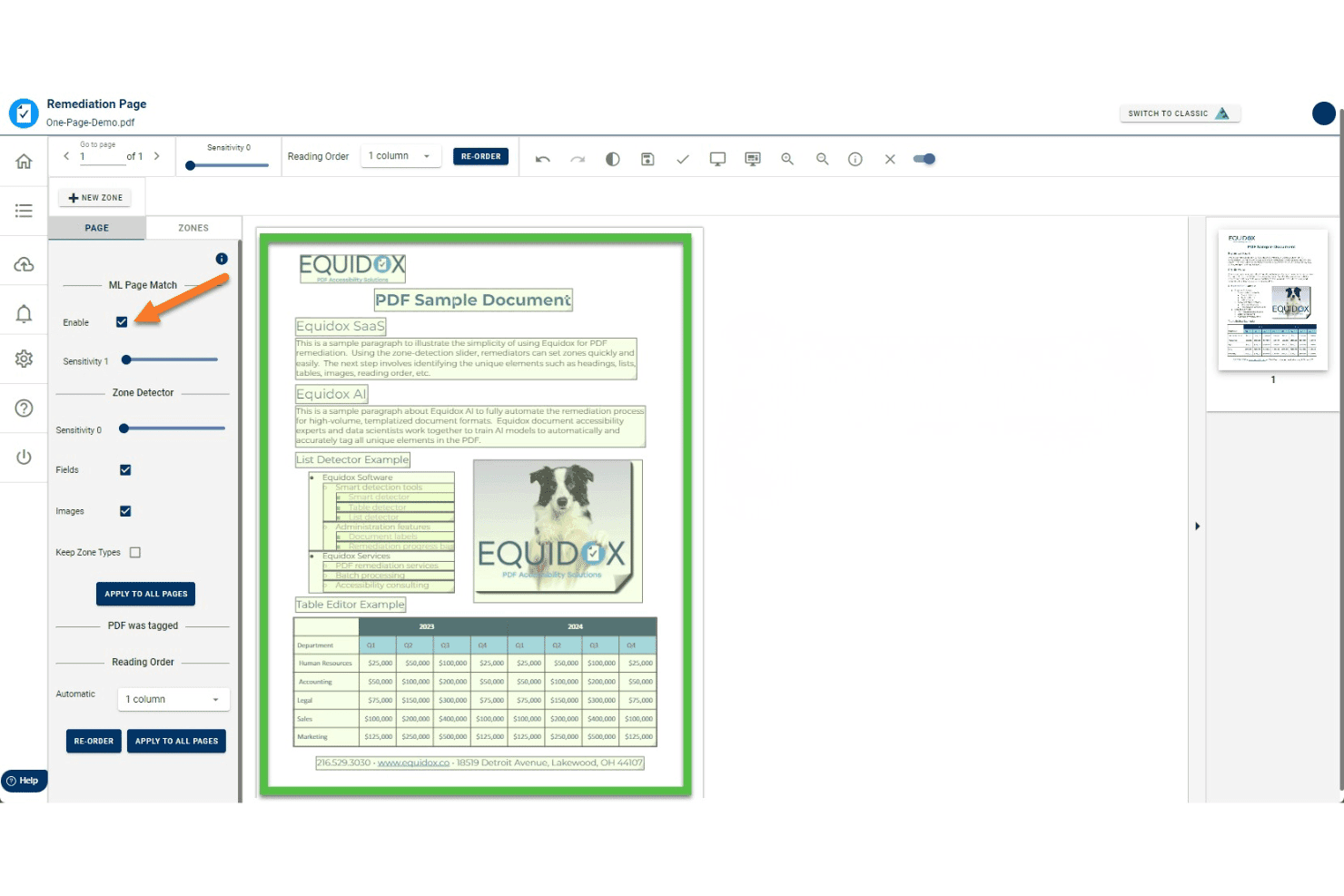
Equidox uses ML Page Match to auto-detect zones for PDF remediation. Equidox is a PDF accessibility remediation platform that uses a zone-based tagging interface, AI-assisted structure detection, and built-in OCR to tag, structure, and validate PDFs against standards like WCAG, Section 508, ADA, and PDF/UA.
Who Is Equidox Best For?
Equidox is a strong fit for compliance and accessibility officers in government, healthcare, and financial services who need on-premise PDF remediation to meet WCAG, Section 508, or ADA requirements without sending sensitive documents to the cloud.
Why I Picked Equidox
I've included Equidox in my top picks because it's the only tool on this list built to run entirely on your organization's own infrastructure, which matters when the documents you're remediating can't leave your network. Its zone-based tagging interface pairs with a Smart Table Detector that auto-identifies merged cells and multi-level headers, and on-prem deployment means remediated files never touch a third-party server. That combination is hard to replicate across WCAG 2.1, Section 508, and PDF/UA in a single on-premise package.
Equidox Key Features
- Built-in OCR: Converts scanned or image-only PDFs into editable, taggable content with a custom text-correction tool for fixing OCR errors.
- Alt text pane: A centralized pane lets you add or edit alt text for every image in the document from a single location, with options to mark decorative images as artifacts.
- Zone Transfer: Copies a validated zone and tag structure from one PDF to another, speeding up remediation for recurring documents with identical layouts.
- Export output warnings: At export, Equidox automatically flags missing alt text, broken URLs, heading errors, and missing form tooltips before the file leaves your workflow.
Equidox Integrations
Equidox supports REST API integrations with SharePoint and Canvas, plus Microsoft and Google organizational sign-in. Its API also supports custom connections to document workflows.
Pros and Cons
Pros:
- Zone-based tagging speeds manual remediation
- Smart table detector manages complex structures
- Runs fully on-premises for data security
Cons:
- Fully automated AI limited to templates only
- No legal-document-specific tagging features
Learn more about Equidox: Best for scaling PDF/UA compliance via API
- 14-day free trial
- Pricing upon request
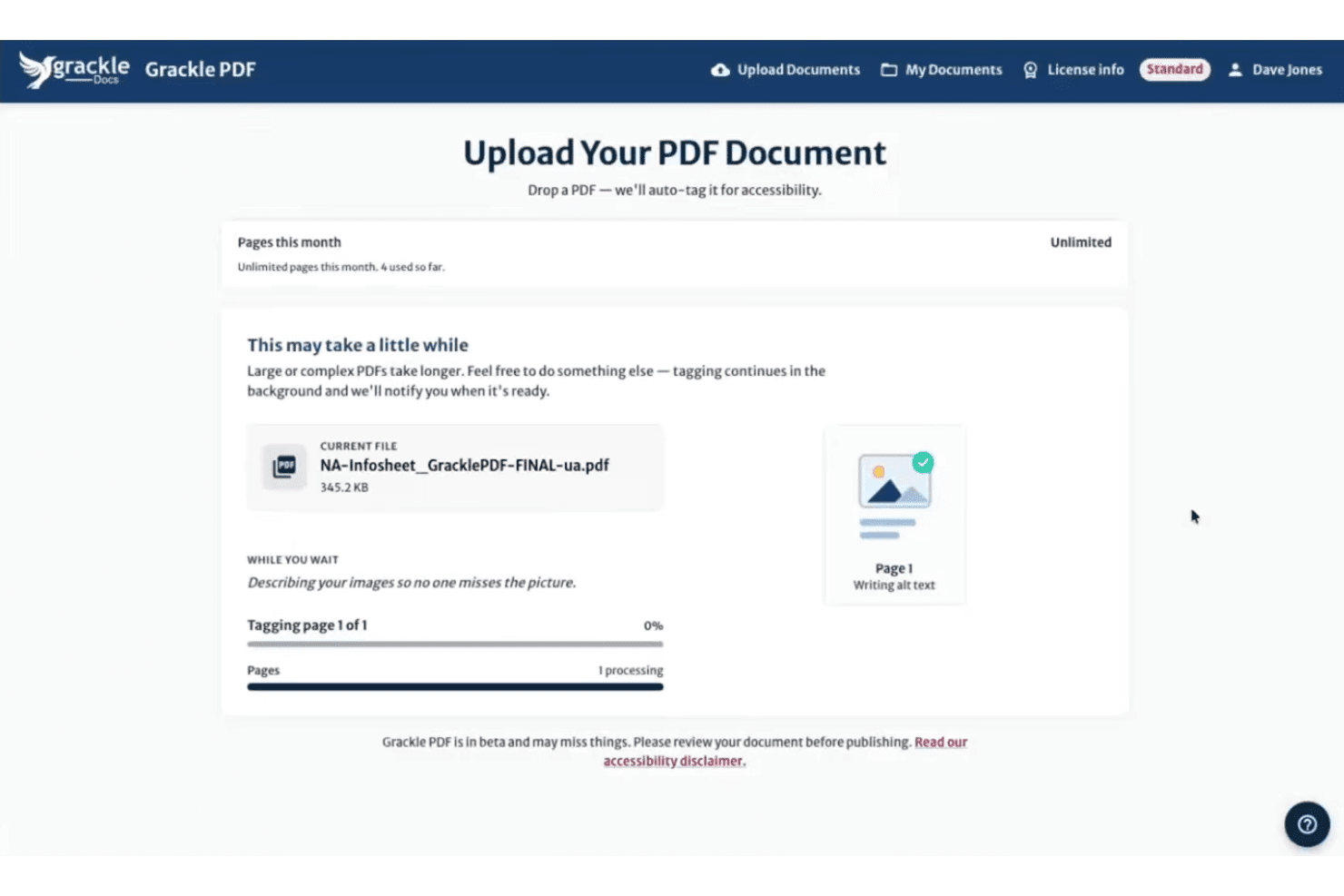
Grackle PDF auto-tags uploaded PDFs for accessibility, including alt text. GrackleDocs is a purpose-built PDF accessibility remediation platform that combines AI-powered auto-tagging, multi-standard compliance validation, reading order editing, and high-volume automated processing via its Grackle Stream API.
Who Is GrackleDocs Best For?
GrackleDocs is a strong fit for compliance and accessibility officers at enterprise or government organizations that need to process high volumes of PDFs to PDF/UA and WCAG standards at scale.
Why I Picked GrackleDocs
GrackleDocs earns its spot on my shortlist because of Grackle Stream, its API-driven batch processing service that handles unlimited pages per day with a 100% PDF/UA compliance guarantee. I've worked with organizations that need to push hundreds of documents through remediation pipelines without manual touchpoints, and Grackle Stream plugs directly into existing infrastructure. The March 2025 AI Layout Detection and Auto Tagging update adds another layer, cutting manual tagging time by up to 90–95% before documents even reach human review.
GrackleDocs Key Features
- AI-suggested alt text: The AI generates contextual alt text for images and figures that you can review and edit before finalizing.
- GrackleScan compliance monitoring: Produces ongoing monthly grading reports so you can track your document estate's accessibility status over time.
- Table Wizard: A guided, step-by-step interface for remediating complex tables, including row and column header identification.
- Grackle GO validator: A free, no-login tool that checks documents against PDF/UA and WCAG standards and generates a printable compliance report in under 10 seconds.
GrackleDocs Integrations
GrackleDocs has a native Google Workspace integration for Google Docs, Sheets, and Slides. Grackle PDF and Grackle Stream also provide API access for custom document-processing workflows, while Grackle Gateway supports SSO.
Pros and Cons
Pros:
- Built-in validator covers multiple accessibility standards
- API supports unlimited batch processing workflows
- AI auto-tagging dramatically speeds up remediation
Cons:
- No pricing published on the company website
- No legal workflow templates or DMS connectors
Learn more about GrackleDocs: Best for high-volume compliance across regulated docs
- Not available
- Pricing upon request
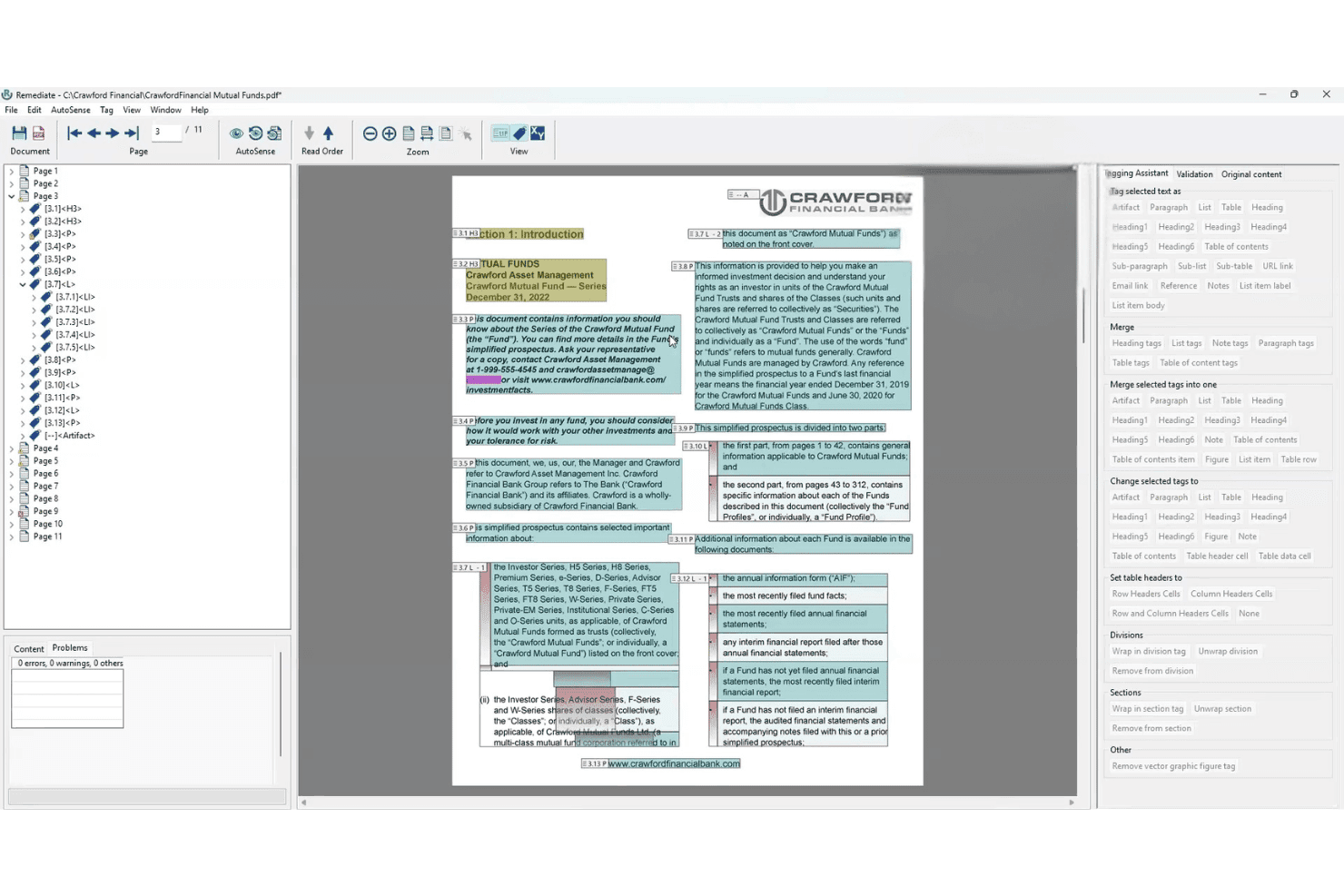
AccessibilityNow Remediate lets users tag and fix PDF accessibility issues visually. AccessibilityNow Remediate is a Windows-based PDF remediation tool from Crawford Technologies that combines AI-assisted tagging via its AutoSense engine with manual tag finishing for reading order, headings, tables, and lists across static and transactional documents.
Who Is AccessibilityNow Remediate Best For?
It's a strong fit for compliance and accessibility officers in regulated industries who need to process large volumes of PDFs against WCAG, Section 508, and PDF/UA standards.
Why I Picked AccessibilityNow Remediate
I picked AccessibilityNow Remediate because its AutoSense AI engine does something I genuinely value: it scans a PDF and flags complex tables, nested lists, and multi-column reading order issues before you touch a single tag. That's a real advantage when you're processing high volumes of regulated documents against WCAG 2.1/2.2, PDF/UA, and Section 508 standards. The companion Validator module then runs batch compliance checks with detailed reporting, so you're not guessing whether a document passes.
AccessibilityNow Remediate Key Features
- Standalone Windows desktop application: Runs without requiring Adobe Acrobat, giving you a dedicated tagging environment independent of third-party software licenses.
- Complex and nested table tagging: Handles multi-level table structures within PDFs, including nested tables that most tools struggle to tag correctly.
- AccessibilityNow Validator integration: Pairs with a companion compliance module that batch-scans documents against WCAG 2.1/2.2, PDF/UA, Section 508, and ADA standards and generates detailed reports.
- Multi-deployment platform ecosystem: Connects to broader AccessibilityNow modules—Publisher, Gateway, and Transactional—supporting cloud, on-premises, hybrid, and SaaS deployment for enterprise-scale workflows.
AccessibilityNow Remediate Integrations
The broader AccessibilityNow platform connects with SharePoint, Alfresco, and Nuxeo through CCM Gateway, plus OpenText and document repositories through Gateway workflows. REST APIs, web services, APIs, command-line tools, scripts, watch folders, and custom SDK integrations support additional connections.
Pros and Cons
Pros:
- Compliance coverage spans global accessibility laws
- Handles nested lists and detailed reading order
- AI flags complex tables and multi-columns
Cons:
- No templates for court filings or Bates numbering
- Manual tool lacks built-in batch processing
Learn more about AccessibilityNow Remediate: Best for audit-ready batch compliance certificates
- Free trial available (100 pages)
- From $0.30/page
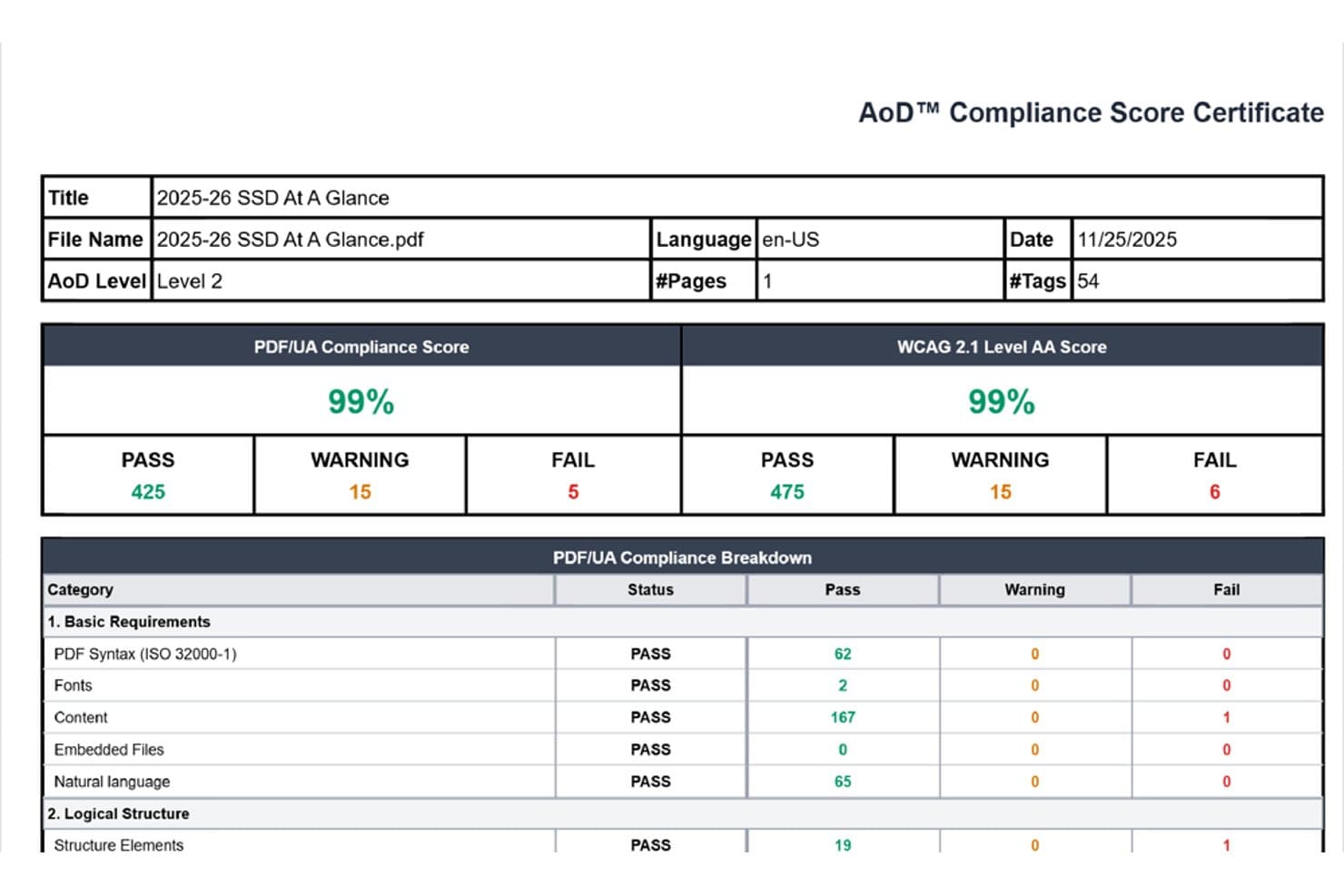
Accessibility On Demand reports PDF compliance scores with pass/fail breakdowns. Accessibility On Demand is an AI-powered PDF remediation service that handles automated tagging, reading order correction, alt text generation, and multi-standard compliance validation across WCAG 2.1/2.2 AA, PDF/UA, Section 508, and ADA Title II/III.
Who Is Accessibility On Demand Best For?
Accessibility On Demand is a strong fit for compliance and accessibility officers who need to process large document backlogs and produce independently validated, audit-ready remediation certificates at scale.
Why I Picked Accessibility On Demand
I've included Accessibility On Demand in my top picks because it's built specifically around producing audit-ready output at scale, not just compliant output. Every remediated PDF gets an independently validated Compliance Score Certificate from PAC by Axes4, a third-party checker, which is the kind of documented proof that holds up in an audit. I also like that the Enhanced tier carries a 95%+ compliance guarantee (with no charge if it falls short), and the Expert Review tier backs that up with a 100% guarantee and human sign-off for complex or legally sensitive documents.
Accessibility On Demand Key Features
- Multi-standard compliance validation: Every remediated PDF is checked against WCAG 2.1/2.2 AA, PDF/UA, Section 508, ADA Title II/III, and Section 504 in a single workflow.
- In-platform tag tree editing: After automated processing, you can manually review and adjust the tag tree, reading order, and OCR text directly in the platform's editing interface.
- Enterprise API for batch pipelines: A dedicated API lets you embed AoD into existing intelligent document processing workflows for fully automated, high-volume remediation at scale.
- Multi-language remediation support: The platform supports PDF remediation in six languages—English, Spanish, French, German, Italian, and Portuguese—with roughly 100 languages planned.
Accessibility On Demand Integrations
Native integrations are not clearly documented. Accessibility On Demand supports custom integrations through an enterprise API and offers a drag-and-drop self-service portal for direct uploads.
Pros and Cons
Pros:
- Multi-standard remediation covers legal requirements
- Batch processing handles large document backlogs
- PAC-validated compliance certificates for every document
Cons:
- No native integration with legal document management systems
- No legal-specific features like Bates preservation
Learn more about Accessibility On Demand: Best for legal PDF batch compliance at scale
- 7-day free trial
- From $19.99/user/month (billed annually)
Visit WebsiteCustomer Rating:4.5/5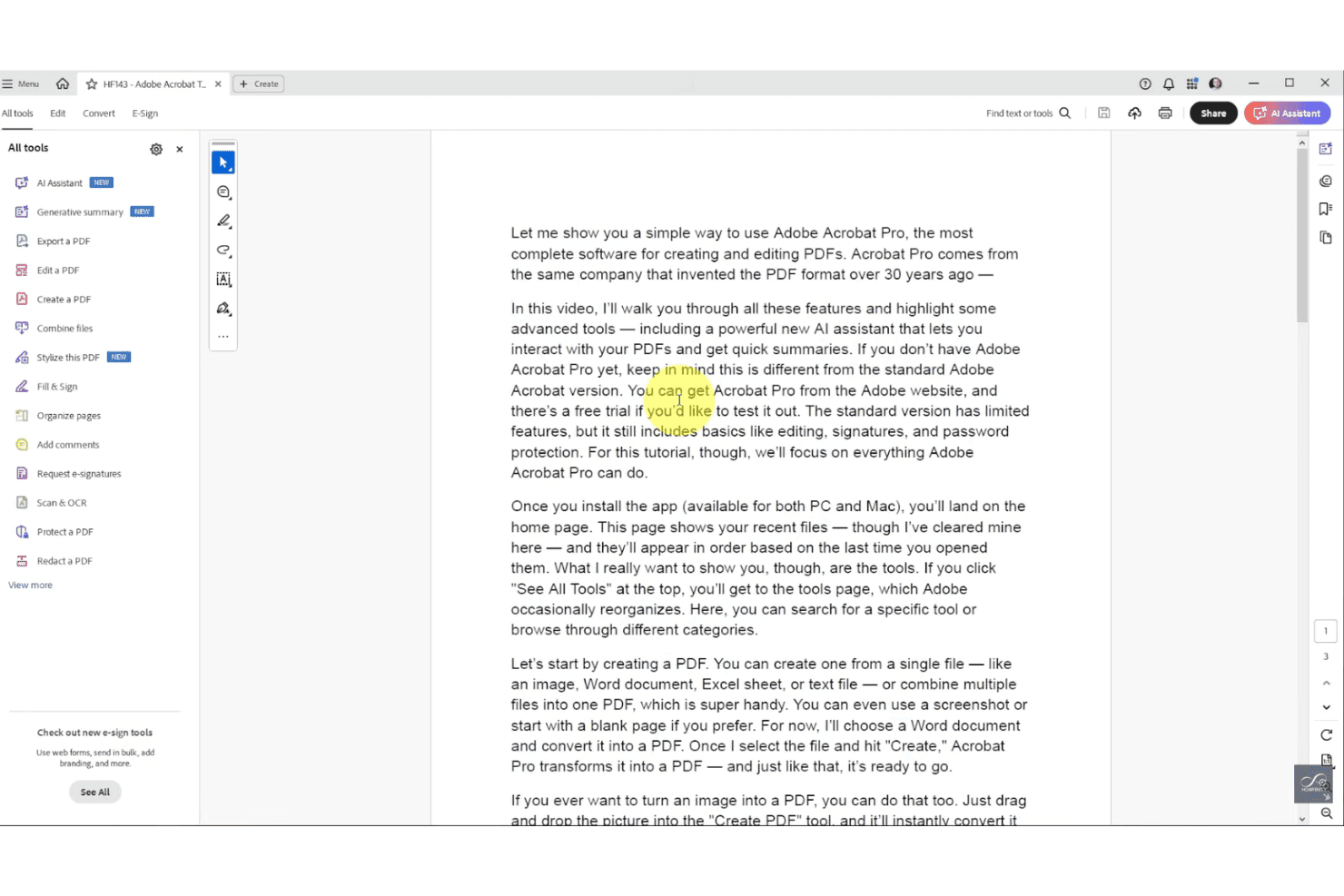
Adobe Acrobat Pro covers a full suite of PDF tools in one workspace. Adobe Acrobat is a PDF editor and remediation platform that includes AI-powered auto-tagging, full tag tree editing, accessibility compliance checking against WCAG and PDF/UA, batch processing via Action Wizard, OCR, redaction, and Bates numbering.
Who Is Adobe Acrobat Best For?
Adobe Acrobat is a strong fit for legal operations teams and law firms that need to process large volumes of PDFs for accessibility compliance across departments or client portfolios.
Why I Picked Adobe Acrobat
Adobe Acrobat earns its spot on my shortlist because no other tool matches its batch processing depth for legal teams running high-volume compliance workflows. The Action Wizard lets you apply a full "Make Accessible" remediation sequence across entire document folders in one pass, and the PDF Accessibility Auto-Tag API has handled real-world workloads as large as 8 million WCAG 2.1 AA compliant documents per year for a U.S. state court system. I also rely on the built-in Bates numbering tool, which applies sequential identifiers across batched PDFs without breaking your remediation workflow.
Adobe Acrobat Key Features
- AI-powered auto-tagging: Uses Adobe Sensei AI to automatically assign structural tags—including headings, tables, and lists—to untagged or partially tagged PDFs.
- Accessibility checker: Validates PDFs against WCAG 2.1/2.2, PDF/UA, and Section 508, and flags issues with suggested one-click fixes directly in the checker panel.
- OCR conversion: Converts scanned or image-only PDFs into searchable, editable, tag-ready text before remediation begins.
- Redaction tool: Permanently removes sensitive text and images from PDFs, with redacted content markable as artifacts within the accessibility tag structure.
Adobe Acrobat Integrations
Adobe Acrobat has native integrations across the Microsoft ecosystem, including Microsoft 365, Microsoft Information Protection, and Power Automate, plus Google Drive, Dropbox, Box, and Adobe Experience Manager. Acrobat Services APIs support custom integrations; native iManage, NetDocuments, and Worldox connectors aren’t documented.
Pros and Cons
Pros:
- Full manual and automated PDF tagging workflow
- Industry-standard Bates numbering with batch support
- AI-powered batch auto-tagging for high volumes
Cons:
- No native iManage or NetDocuments connector
- Accessibility checker catches limited real issues
Learn more about Adobe Acrobat: Best for compliance-grade multi-standard auditing
- Free trial available
- Pricing upon request
Visit WebsiteCustomer Rating:4.6/5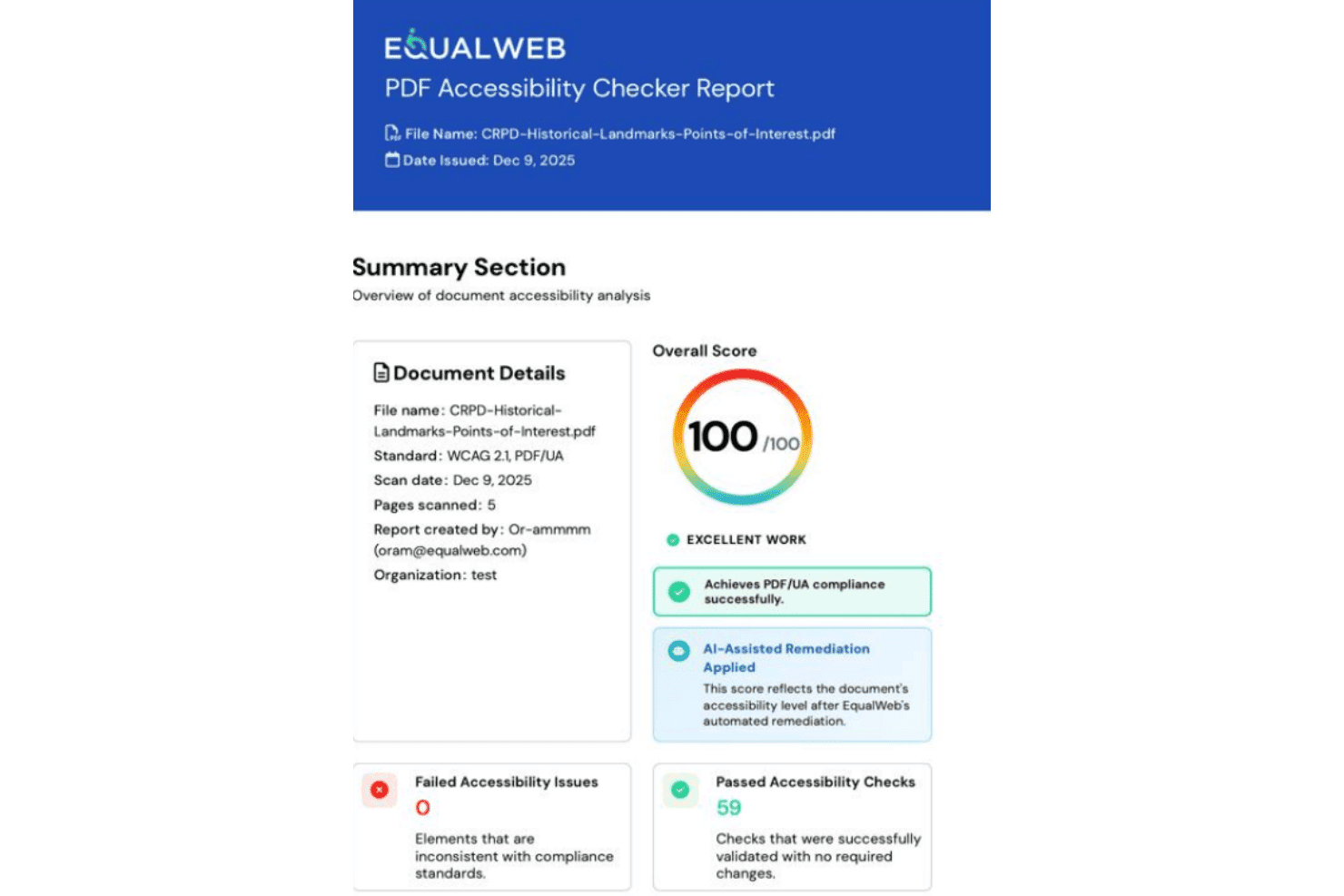
EqualWeb scores PDFs for accessibility compliance across multiple standards. EqualWeb PDF Accessibility is a cloud-based PDF remediation platform that combines AI auto-remediation, OCR for scanned documents, and IAAP/CPWA-certified expert manual remediation across a multi-standard compliance framework covering WCAG, PDF/UA, Section 508, ADA, and EN 301 549.
Who Is EqualWeb PDF Accessibility Best For?
EqualWeb PDF Accessibility is a strong fit for compliance and accessibility officers who need to audit documents against multiple standards simultaneously.
Why I Picked EqualWeb PDF Accessibility
EqualWeb PDF Accessibility earns its spot on my shortlist because no other tool I've tested audits against as many standards simultaneously, covering WCAG 2.1 and 2.2, PDF/UA-1, PDF/UA-2, Section 508, ADA, and EN 301 549 in a single pass. I particularly like the post-remediation re-audit, which runs the same 80+ checks on every output file and generates a shareable pass/fail report you can hand directly to an auditor. The conformance records issued for manually remediated documents add another layer of defensibility that matters when a client or regulator asks for proof.
EqualWeb PDF Accessibility Key Features
- AI auto-remediation engine: Automatically builds a full tag tree from scratch, covering headings, lists, tables, reading order, language attribution, and metadata in a single pass.
- Human approval gate for alt text: AI-generated alt text is displayed alongside screenshots of the relevant image regions, requiring human review and approval before being applied.
- Cloud Connect integration: Connects to SharePoint, Google Drive, OneDrive, Dropbox, Box, and S3-compatible storage, enabling automated in-place remediation without manual file uploads.
- OCR for scanned documents: Converts scanned, image-only PDFs of up to 400 pages into searchable, tagged, accessible text before applying full AI remediation.
EqualWeb PDF Accessibility Integrations
Native integrations span Microsoft 365, Google Drive, OneDrive, Dropbox, Box, AWS S3, Cloudflare R2, WordPress, Drupal, and Moodle. It also supports Shopify, Canvas LMS, other cloud storage, and REST API custom integrations.
Pros and Cons
Pros:
- Human approval required for all AI alt text
- Hybrid AI and certified expert remediation
- Audits against the most compliance standards
Cons:
- No redaction-aware or Bates-number handling
- No legal DMS platform integrations
Learn more about EqualWeb PDF Accessibility: Best for on-premises government-scale remediation
- Free plan available
- From $599/user/year
Visit WebsiteCustomer Rating:5/5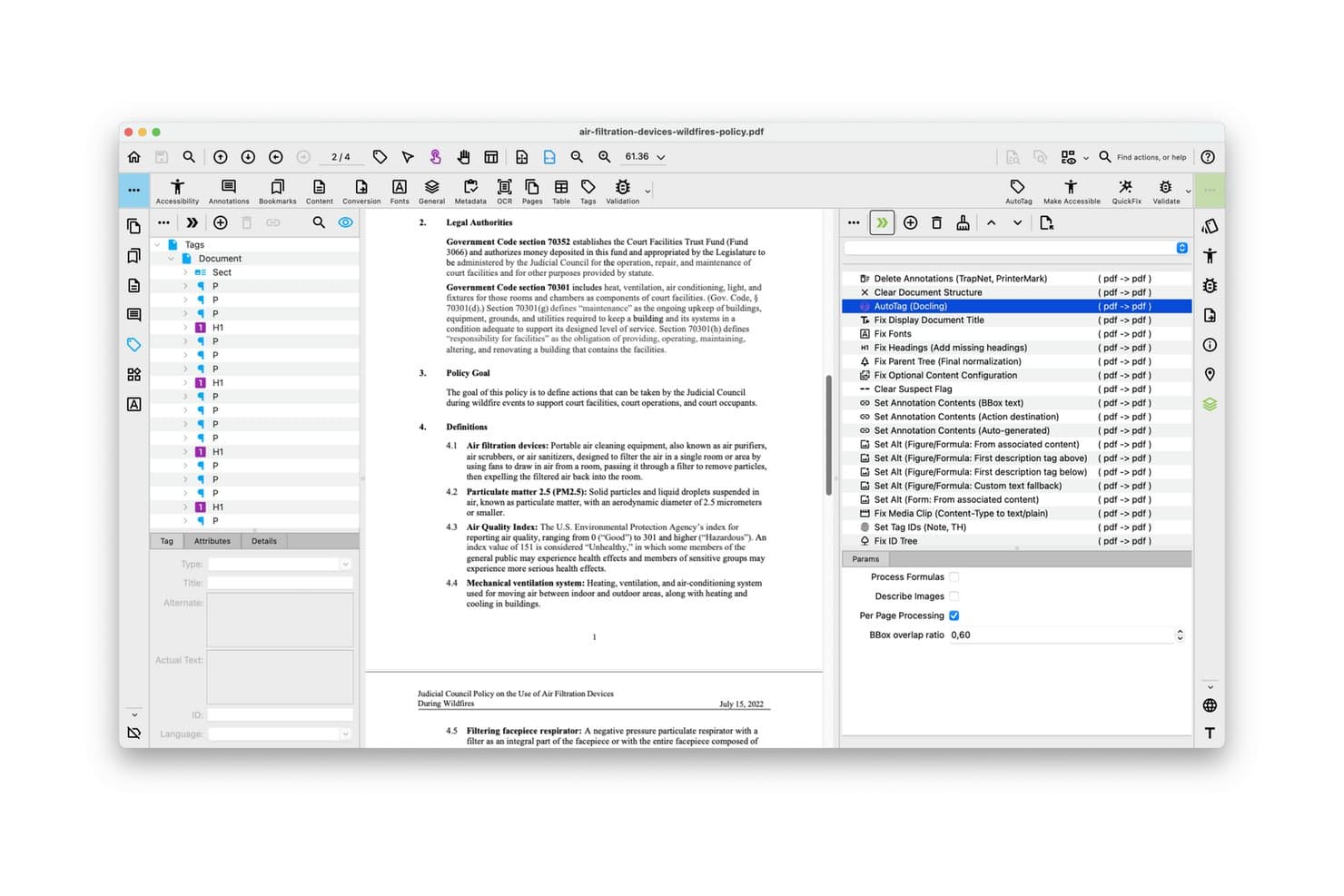
PDFix lets users auto-tag and remediate PDF accessibility issues visually. PDFix is a PDF remediation tool that combines AI-powered auto-tagging, multi-standard compliance validation (PDF/UA, WCAG, Section 508, ADA Title II), batch processing, and on-premises deployment across Windows, macOS, and Linux.
Who Is PDFix Best For?
PDFix is a strong fit for IT administrators and compliance officers in government agencies, courts, and regulated institutions that process high volumes of PDFs on-premises.
Why I Picked PDFix
I picked PDFix as one of the best because its on-premises deployment is genuinely built for institutions that can't send sensitive documents to an external server. The California Judicial Council uses it to process 4.8 million cases annually across 58 courts, which tells you exactly what scale it's designed for. I also love that reusable JSON layout templates let you define remediation rules once and apply them across thousands of identical court forms automatically.
PDFix Key Features
- Multi-standard compliance validation: The embedded veraPDF engine checks documents against PDF/UA-1, PDF/UA-2, WCAG 2.1, WCAG 2.2, Section 508, ADA Title II, and the European Accessibility Act in a single workflow.
- AI alt text generation: Generate alt text for images using a local offline BLIP model or OpenAI's API, with bulk editing supported through JSON layout templates.
- Cross-platform native support: PDFix runs natively on Windows, macOS, and Linux, making it usable across mixed-OS environments without virtualization.
- Exportable audit reports: Validation results export as HTML, XML, or JSON, giving compliance officers documentation-ready reports for accessibility audits.
PDFix Integrations
PDFix offers marketplace integrations through Enfocus Switch, including PDFix Validation and PDFix Make Accessible. Its SDK supports custom integrations through REST-compatible interfaces, Python, C#, Java, C++, and Node.js, plus Docker, Kubernetes, and GitHub Actions workflows.
Pros and Cons
Pros:
- Customizable AI models for tagging and alt text
- Native support for Windows, macOS, and Linux
- Runs entirely on-premises with no data loss
Cons:
- Advanced automation requires technical template setup
- No built-in legal DMS connectors
Learn more about PDFix: 9Best for multi-standard compliance at scale
PREP
- Free demo available
- Pricing upon request
Visit WebsiteCustomer Rating:5/5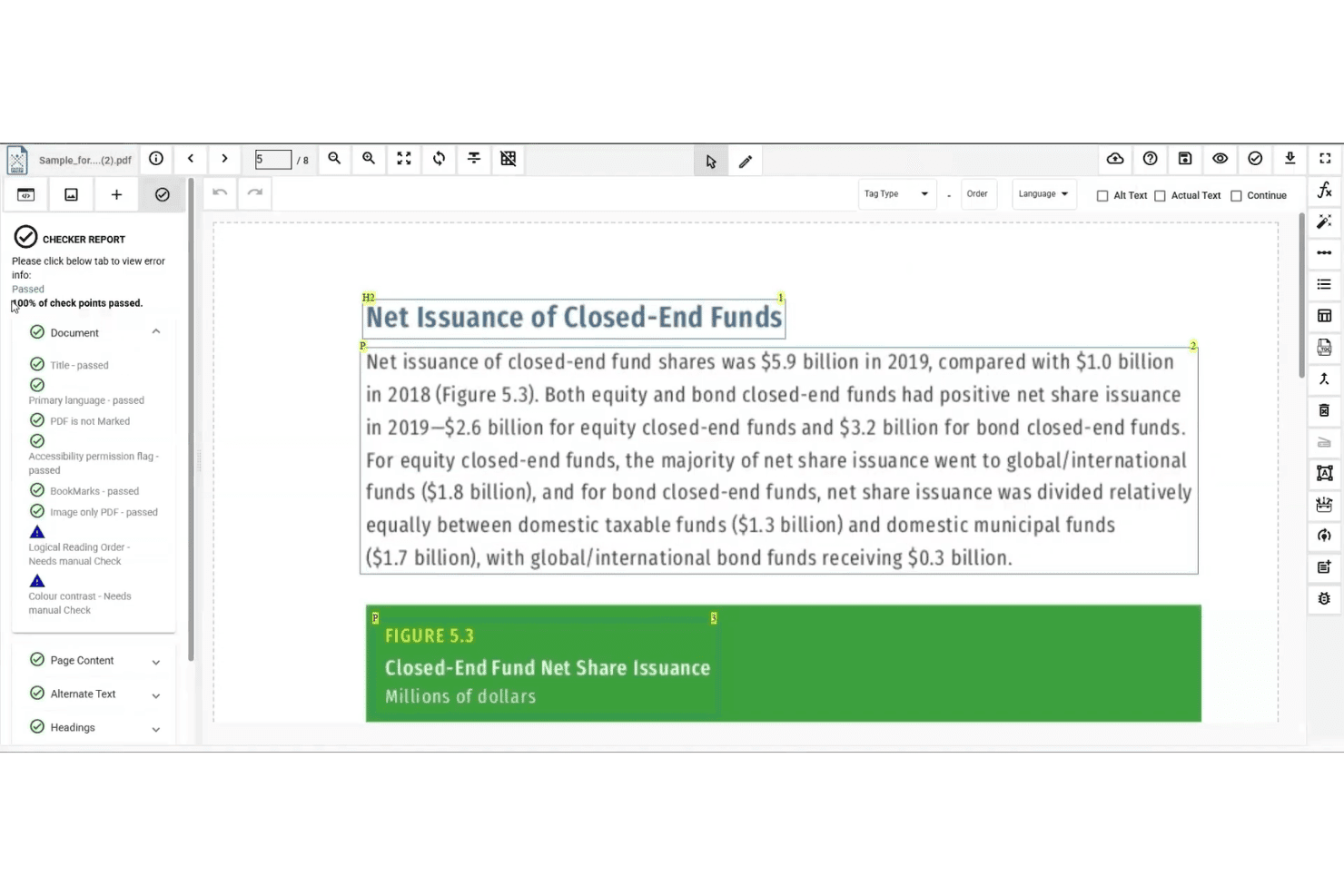
PREP checks PDF accessibility and flags issues needing manual review. PREP is a PDF remediation platform by Continual Engine that uses AI-assisted auto-tagging, batch processing, built-in compliance checking across multiple accessibility standards, and a REST API suite to handle large-scale document remediation workflows.
Who Is PREP Best For?
PREP is a strong fit for compliance and accessibility officers at enterprise organizations managing high volumes of documents across multiple regulatory standards.
Why I Picked PREP
I picked PREP as one of the best because no other tool I've evaluated covers this many accessibility standards in a single platform. WCAG 2.2 AA, PDF/UA, Section 508, ADA Title II, AODA, and the European Accessibility Act are all built into the compliance checker, which means one batch run surfaces violations across every standard at once. The template tagging feature is what makes this scalable: once you configure a tagging profile for a recurring document structure, PREP applies it automatically across future uploads without manual review.
PREP Key Features
- Real-time screen reader preview: Lets you verify how tagged content will be read aloud before exporting the final document.
- AI-enhanced OCR: Processes scanned and image-only PDFs, including multilingual and right-to-left language content, in batch.
- Multi-user workflow management: Supports document assignment, progress tracking, and usage reporting by team or department.
- PREP+ REST API suite: Enables automated remediation pipelines via Auto Tag, Accessibility Checker, and Audit APIs for integration into existing systems.
PREP Integrations
PREP has documented integrations with Canvas, D2L Brightspace, LTI, CivicPlus, Wagtail, and Okta. Its REST API supports custom connections, but native integrations with iManage Work, NetDocuments, and Worldox aren’t documented.
Pros and Cons
Pros:
- Real-time screen reader preview for QC
- AI tags most PDF elements automatically
- Covers six accessibility standards in one check
Cons:
- Lacks native legal document management connectors
- No legal-industry-specific features available
Learn more about PREP: Best for high-volume, standards-driven PDF compliance
- 7-day free trial + free demo available
- Pricing upon request
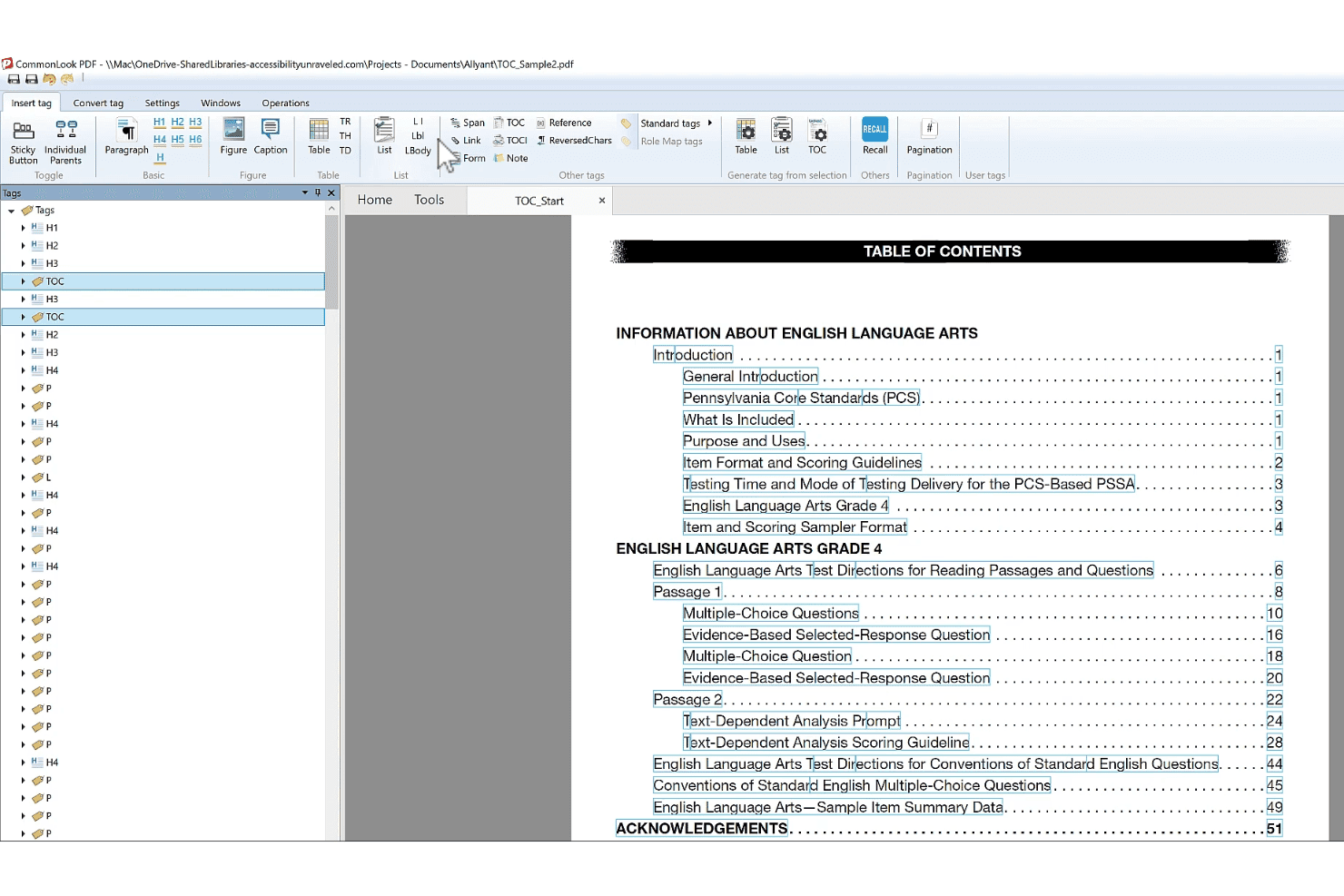
CommonLook Dynamic helps users tag and remediate PDF accessibility structures. CommonLook Dynamic is an enterprise PDF remediation and accessibility platform that handles high-volume, data-driven document production with multi-standard compliance validation across WCAG, PDF/UA, Section 508, ADA Title II, and the European Accessibility Act.
Who Is CommonLook Dynamic Best For?
CommonLook Dynamic is a strong fit for compliance officers and legal operations teams managing high-volume, templated document workflows that must meet multiple accessibility standards simultaneously.
Why I Picked CommonLook Dynamic
CommonLook Dynamic earns its spot on my shortlist because it's purpose-built for exactly the scenario most remediation tools struggle with: generating accessible, compliant PDFs at enterprise scale from structured data sources like databases and spreadsheets. I picked it specifically for teams running templated, high-volume document workflows where multi-standard compliance isn't optional. The suite validates against WCAG 2.0/2.1/2.2, PDF/UA, Section 508, and ADA Title II simultaneously, and every processed document ships with a paired Validation Report you can use as an audit trail.
CommonLook Dynamic Key Features
- Fix Wizard: A step-by-step guided tool that walks users through identifying and correcting accessibility and structural issues in a PDF without requiring deep specialist knowledge.
- System of Record: Tracks remediation history and stores each processed PDF paired with its Validation Report, creating a retrievable audit trail for compliance documentation.
- CommonLook PDF Validator: A free Adobe Acrobat Pro plugin that tests individual PDFs against accessibility standards and generates certification reports covering tagging, alt text, metadata, and links.
- CommonLook Clarity: Continuously scans document repositories and websites to flag newly added inaccessible PDFs, giving teams a live view of their compliance exposure across large document libraries.
CommonLook Dynamic Integrations
CommonLook’s documented integrations include Adobe Acrobat Pro DC, Microsoft Word and PowerPoint through CommonLook Office, Monsido, and the Allyant HUB. CommonLook Dynamic also connects to databases and spreadsheets as data sources.
Pros and Cons
Pros:
- AI auto-tagging for tables, forms, lists
- Compliance audit reports paired with each PDF
- Multi-standard compliance validation in every workflow
Cons:
- No Bates numbering or redaction-aware tagging
- No native legal DMS integrations available
Learn more about CommonLook Dynamic:
Annen programvare for PDF-tilrettelegging
Her er noen flere alternativer for programvare for PDF-tilrettelegging som ikke kom med på kortlisten min, men som likevel er verdt å se nærmere på:
- 11RemeDocsBest for automated compliance cert generation
- 12DocAccessBest for public-sector PDF accessibility at scale
- 13OpenTextBest for AI-assisted PDF accessibility in large orgs
- 14Recite MeBest for website-wide PDF accessibility monitoring
- 15Foxit PDF EditorBest for PDF remediation inside legal DMS workflows
- 16Tungsten AutomationBest for legal PDF workflows with DMS integration
- 17MadeToTagBest for InDesign-to-PDF/UA accessibility output
- 18CommonLook PDFBest for compliance-grade table and tag remediation
- 19AppligentBest for expert-led Section 508 certification
- 20SensusAccessBest for accessible alt text in batch PDF workflows
How I Evaluate PDF Remediation Software
I split my evaluation into baseline capabilities every tool must meet and the differentiators—like DMS integration, audit-grade reporting, and redaction-aware tagging—that separate tools built for legal workflows from general-purpose options.
Core Functionality (Table Stakes For This List)
When I'm selecting tools for my list, I rank each one on a scale from 0 (does not offer the functionality) to 5 (excels in this area) for each core functionality listed below. I then calculate the tool's total score into a percentage, using 65% as a benchmark to help assess its overall fit for the list.
- PDF Tagging & Structure: I check whether a tool offers full tag tree editing with role mapping, not just auto-tagging that leaves you cleaning up messy heading hierarchies in a 200-page brief.
- Compliance Checks: Each tool should audit against WCAG, PDF/UA, and Section 508 with clear pass/fail reporting, since court filings and client documents often need to satisfy multiple standards at once.
- Alt Text & Image Handling: I look for bulk alt text editing, decorative image detection, and figure tagging—features that matter when you're remediating exhibit-heavy case documents with dozens of embedded images.
- Table & Form Remediation: Complex tables in contracts and financial disclosures break screen readers fast, so I evaluate how well each tool handles nested table headers, form field labeling, and tab order.
- Batch Processing & Automation: High-volume legal workflows demand more than single-file remediation. I look for API access, rules-based batch processing, and template support that can handle hundreds of documents in a single run.
- Reading Order & Language Controls: A misordered reading sequence can make a court filing incomprehensible to a screen reader user. I evaluate whether tools let you visually adjust reading order and tag per-element language attributes for multilingual documents.
Once I have a list of tools that meet the criteria, I consider what sets each platform apart.
Differentiating Factors (What Sets Vendors Apart)
Here's how I compare and contrast different vendors:
Standout Features
Redaction-aware tagging is non-negotiable for legal work. I check whether a tool correctly flags redacted content as artifacts so screen readers never expose privileged or sealed information. DMS integration matters just as much. I evaluate whether tools connect to iManage, NetDocuments, or Worldox and preserve metadata when documents move through remediation. Audit trail and certification capabilities round out my assessment—I look for timestamped remediation logs and PDF/UA conformance certificates that hold up during ADA compliance audits.
Beyond Features
Data security matters when privileged or sealed filings pass through remediation. I check whether a vendor offers on-premise or private-cloud deployment and holds SOC 2 Type II certification, since many firms' outside counsel guidelines require both. DMS integration is equally important—I evaluate whether tools connect to iManage, NetDocuments, or Worldox and preserve metadata and version history during remediation. I also look at licensing models, especially whether pricing scales by volume or per seat, because case-driven document loads fluctuate and a rigid structure can inflate costs fast.
Slik velger du programvare for PDF-tilrettelegging
Det riktige verktøyet for PDF-tilrettelegging handler om hvor godt det passer til mengden, arbeidsflyten og kravene dine til etterlevelse – så spør deg selv: Hva er den største flaskehalsen for tilgjengelighet som teamet ditt står overfor akkurat nå?
| Hvis prioriteten din er … | Se etter … |
|---|---|
| Hvis prioriteten din er …Batchbehandling av store mengder juridiske dokumenter | Se etter …Massebehandling med API eller automatiserte arbeidsflyter |
| Hvis prioriteten din er …Revisjonsspor som tåler gransking | Se etter …Generering av sertifikater og rapporter som kan eksporteres |
| Hvis prioriteten din er …Dokumenthåndtering | Se etter …Integrasjon med de eksisterende DMS-plattformene dine |
| Hvis prioriteten din er …Pålitelig håndtering av sladding | Se etter …Sladdingsbevisst tagging og kontroll av artefakter |
| Hvis prioriteten din er …Arbeid for myndigheter eller offentlig sektor | Se etter …Kontroller mot flere standarder, inkludert PDF/UA og Section 508 |
Slik vurderer du kortlisten din
- Be om et eksempel på en revisjonsrapport: Be hver leverandør om et ekte (sladdet) PDF/UA- eller Section 508-samsvarssertifikat som er generert av plattformen deres.
- Gjennomfør en batchtest: Kjør 10+ eksempler på juridiske PDF-filer gjennom en prøveversjon for å teste hastigheten og nøyaktigheten ved massebehandling opp mot standardene dine.
- Test DMS-integrasjonen: Be leverandøren demonstrere hvordan et tilrettelagt dokument lagres i DMS-oppsettet ditt (iManage, NetDocuments osv.) i en direkte økt.
- Bekreft arbeidsflyten for sladding: Send inn en sladdet fil for tilrettelegging, og bekreft at sensitive blokker er riktig tagget som artefakter.
- Beslutningsfilter – mengde kontra integrasjon: Prioriter automatiseringsverktøy for store mengder når etterlevelse i stor skala er viktigst; velg arbeidsflytbaserte verktøy for dyp integrasjon med arkiv- og dokumenthåndtering.
Hva er programvare for PDF-tilrettelegging?
Programvare for tilgjengelighetstilpasning av PDF er en type verktøy som identifiserer og korrigerer tilgjengelighetsproblemer i PDF-dokumenter, slik at de oppfyller juridiske krav og tilgjengelighetsstandarder som WCAG, PDF/UA og Section 508. Disse verktøyene legger til tagger, leserekkefølge, alternativ tekst og andre tilgjengelighetsfunksjoner, slik at skjermlesere og hjelpeteknologier kan tolke innholdet nøyaktig for alle brukere. Dette er avgjørende for juridisk, regulatorisk og offentlig sektors etterlevelse.
Funksjoner i programvare for tilgjengelighetstilpasning av PDF
Når du velger programvare for tilgjengelighetstilpasning av PDF, bør du se etter følgende viktige funksjoner:
- PDF-tagger og redigering av struktur: Gjør det mulig å legge til, endre eller reparere taggtreet og strukturen i dokumenter, slik at alle overskrifter, avsnitt og elementer er tilpasset skjermlesere og oppfyller tilgjengelighetskrav.
- Kontroller av samsvar og rapportering: Kontrollerer automatisk PDF-filer mot standardene WCAG, PDF/UA og Section 508, og gir tydelige godkjent/ikke godkjent-tilbakemeldinger og detaljerte rapporter for revisjoner eller regulatoriske innsendelser.
- Alternativ tekst og tilrettelegging av bilder: Lar deg legge til, redigere eller bruke alternativ tekst på flere bilder samtidig, samt merke dekorative bilder som artefakter. Dette er avgjørende for juridiske bevis, diagrammer og dokumenter med mye grafikk.
- Tilrettelegging av tabeller og skjemafelt: Støtter korrigering av komplekse tabeller, nestede overskrifter og etiketter for skjemafelt, slik at tabulatorrekkefølge og datarelasjoner er tydelige for hjelpeteknologier.
- Batchbehandling og automatisering: Gjør det mulig å behandle flere dokumenter samtidig, enten gjennom API-integrasjoner eller innebygde batchverktøy. Dette er avgjørende for juridiske arbeidsflyter med stort volum og korte tidsfrister.
- Leserekkefølge og språkstyring: Lar deg visualisere, justere og angi den logiske leserekkefølgen samt språkmerking for hvert element, slik at skjermlesere tolker innholdet i riktig rekkefølge og på riktig språk.
- Artefaktmerking med støtte for sladding: Merker sladdet eller privilegert innhold som artefakter i taggstrukturen, slik at skjermlesere ikke avslører forseglet eller sensitiv informasjon i rettsdokumenter eller klientdokumenter.
- Integrasjon med dokumentstyringssystemer (DMS): Kobler seg til eksisterende DMS-plattformer som iManage, NetDocuments eller Worldox for direkte import, eksport og bevaring av metadata under arbeidsflyter for tilgjengelighetstilpasning.
- Revisjonsspor og eksport av sertifisering: Oppretter tidsstemplete logger og genererer PDF/UA- eller Section 508-sertifikater som dokumenterer samsvar – noe som er avgjørende når du skal svare på forespørsler fra klienter, domstoler eller tilsynsmyndigheter.
- Alternativer for distribusjon og sikkerhet: Tilbyr alternativer som lokal installasjon, privat sky eller sikker SaaS-distribusjon med legitimasjonsstyring og samsvarssertifiseringer, slik at du trygt kan håndtere konfidensielle eller privilegerte dokumenter.
Vanlige AI-funksjoner i programvare for tilgjengelighetstilpasning av PDF
I tillegg til de vanlige funksjonene i programvare for tilgjengelighetstilpasning av PDF som er nevnt ovenfor, tar mange av disse løsningene i bruk AI med funksjoner som:
- AI-drevet automatisk tagging: Bruker maskinlæring til å analysere dokumentstrukturen og automatisk generere nøyaktige taggtrær, noe som reduserer tiden som brukes på manuell tagging og gir bedre konsistens på tvers av store PDF-batcher.
- AI-drevet generering av alternativ tekst: Oppretter automatisk beskrivende alternativ tekst for bilder, diagrammer og grafikk ved å tolke visuelt innhold. Dette bidrar til å sikre tilgjengelighet selv når kildebeskrivelser mangler.
- AI-basert gjenkjenning av tabellstruktur: Oppdager og rekonstruerer komplekse tabeller, inkludert sammenslåtte celler og nestede overskrifter, slik at det blir enklere å tilrettelegge regnskaper og juridiske bevis uten manuell inngripen.
- AI-assistert korrigering av leserekkefølge: Analyserer dokumentlayout og innholdsforløp for å foreslå eller bruke logiske leserekkefølger. Dette reduserer feil som kan forvirre skjermlesere og gjøre det vanskeligere å forstå dokumentet.
- AI-støttet språkdeteksjon: Identifiserer og merker forskjellige språk i ett enkelt dokument, slik at skjermlesere kan gjengi innholdet nøyaktig i flerspråklige innsendelser og internasjonale juridiske dokumenter.
Fordeler med programvare for tilgjengelighetstilpasning av PDF
Implementering av programvare for tilgjengelighetstilpasning av PDF gir flere fordeler for teamet og virksomheten din. Her er noen av fordelene du kan se frem til:
- Konsekvent overholdelse av lover og forskrifter: Automatiserte samsvarskontroller og rapportering på revisjonsnivå hjelper deg med å oppfylle WCAG-, PDF/UA- og Section 508-standarder for krav fra domstoler, klienter og myndigheter.
- Nøyaktig tilgjengelighet for dokumenter: Tagging, redigering av struktur og AI-drevet automatisk tagging sørger for at PDF-filer er kompatible med skjermlesere, slik at alle får tilgang til kritisk juridisk innhold.
- Beskyttet informasjon underlagt taushetsplikt og sladdet informasjon: Sladdingsbevisst tagging markerer forseglede eller sensitive deler som artefakter, slik at hjelpemiddelteknologi hindres i å eksponere konfidensiell informasjon.
- Effektiv behandling av store dokumentmengder: Massekorrigering, batchautomatisering og API-integrasjoner lar deg korrigere store mengder dokumenter uten å bremse arbeidsflyten.
- Pålitelig integrasjon med dokumenthåndtering: DMS-integrasjoner gjør det mulig å flytte, lagre og bevare metadata i systemer som iManage, NetDocuments eller Worldox under korrigeringen.
- Effektiv håndtering av bilder og tabeller: Funksjoner som redigering av alternativ tekst i bulk, AI-drevet tabellgjenkjenning og korrigering av skjemafelt hjelper teamet med å håndtere komplekse vedlegg og juridiske skjemaer nøyaktig.
- Etterprøvbare revisjonsspor og sertifisering: Tidsstemplede logger over korrigeringer og eksporterbare PDF/UA- eller Section 508-sertifikater gir dokumentasjon som oppfyller klientrevisjoner eller forespørsler fra tilsynsmyndigheter.
Kostnader og priser for programvare for PDF-korrigering
Valg av programvare for PDF-korrigering krever en forståelse av de ulike prismodellene og abonnementene som er tilgjengelige. Kostnadene varierer basert på funksjoner, teamstørrelse, tillegg og mer. Tabellen nedenfor oppsummerer vanlige abonnementer, gjennomsnittsprisene deres og typiske funksjoner som er inkludert i programvareløsninger for PDF-korrigering:
Sammenligningstabell for abonnementer for programvare for PDF-korrigering
| Abonnementstype | Gjennomsnittspris | Vanlige funksjoner |
|---|---|---|
| AbonnementstypeGratisabonnement | Gjennomsnittspris$0 | Vanlige funksjonerGrunnleggende samsvarskontroller, begrenset antall sider, begrenset eksport og minimal brukerstøtte. |
| AbonnementstypePersonlig abonnement | Gjennomsnittspris$30–$75/bruker/måned | Vanlige funksjonerLisens for én bruker, standardverktøy for PDF-tagging, enkel samsvarsrevisjon og støtte via e-post. |
| AbonnementstypeForretningsabonnement | Gjennomsnittspris$100–$400/bruker/måned | Vanlige funksjonerFlere brukerplasser, batchbehandling, avansert tagging, rapportering for PDF/UA og Section 508 samt brukerstøtte. |
| AbonnementstypeVirksomhetsabonnement | Gjennomsnittspris$500–$2,500/måned (tilpasset) | Vanlige funksjonerUbegrenset antall brukerplasser, API-integrasjon, DMS-koblinger, lokal installasjon, revisjonsspor og SOC 2-samsvar. |
Vanlige spørsmål om programvare for PDF-tilrettelegging
Her er noen svar på vanlige spørsmål om programvare for PDF-tilrettelegging:
Hvilke integrasjoner bør jeg se etter i programvare for PDF-tilrettelegging?
Se etter integrasjoner med større systemer for dokumenthåndtering, som iManage, NetDocuments og Worldox. Disse gjør det mye enklere å lagre og administrere tilrettelagte dokumenter uten å forstyrre eksisterende arbeidsflyter. API-tilgang er også verdifullt hvis du trenger å automatisere behandling av store mengder dokumenter eller koble til egendefinerte systemer.
Hvordan håndterer programvare for PDF-tilrettelegging sladdet innhold?
God programvare for PDF-tilrettelegging markerer sladdede blokker som artefakter under taggingsprosessen. Dette sikrer at skjermlesere og hjelpemiddelteknologi ikke eksponerer forseglet, privilegert eller konfidensiell tekst. Test alltid en sladdet fil før utrulling for å bekrefte at verktøyet bruker sladdingsbevisst tagging på en konsekvent måte.
Er lokal installasjon viktig for juridiske team?
Ja, lokal installasjon eller privat sky er viktig hvis advokatfirmaet eller den juridiske avdelingen din håndterer privilegerte eller sensitive dokumenter. Mange retningslinjer for eksterne juridiske rådgivere krever lokale løsninger eller SOC 2 Type II-sertifisering for å oppfylle kravene, så bekreft alltid distribusjonsalternativene med leverandøren.
Hvordan kan jeg vurdere funksjonene for satsvis behandling?
Be leverandøren demonstrere behandling av 10 eller flere juridiske PDF-filer i én enkelt sats. Se etter funksjoner som regelbaserte maler, køovervåking og tydelig rapportering om feil eller status for tilrettelegging. Team som håndterer store mengder rettstvister eller regulatorisk arbeid, vil ha størst nytte av gode funksjoner for satsvis behandling.
Genererer disse verktøyene samsvarssertifikater?
Ja, ledende løsninger kan generere samsvarssertifikater for PDF/UA eller Section 508 samt revisjonsrapporter med tidsstempel. Disse er viktige ved ADA-samsvarsrevisjoner, regulatoriske gjennomganger eller når du skal svare på klientforespørsler om dokumentasjon på tilrettelegging. Be alltid om et eksempel på et sertifikat som en del av evalueringsprosessen.
Hvordan bør jeg evaluere DMS-integrasjon under en prøveperiode?
I løpet av en prøveperiode bør du be leverandøren demonstrere lagring og henting av en tilrettelagt PDF fra den samme DMS-plattformen teamet ditt bruker, for eksempel iManage eller NetDocuments. Bekreft at metadata og versjonshistorikk bevares under prosessen, ettersom dette støtter etterprøvbar dokumenthåndtering.
Kan AI-funksjoner erstatte manuell tilrettelegging?
Nei, AI effektiviserer oppgaver som automatisk tagging og generering av alternativ tekst, men du trenger fortsatt manuell gjennomgang – spesielt for komplekse juridiske dokumenter. Bruk AI til å håndtere repetitive oppgaver, og kontroller deretter taggstrukturen, leserekkefølgen og sensitivt innhold manuelt for å sikre samsvar.