


Law firm software implementation is one of those undertakings where the margin for error is narrow—a poorly managed rollout can disrupt billing cycles, compromise client data, and erode team trust in the new system. Getting it right from the start isn't just a technical goal; it's a business-critical one.
A structured, phased approach takes the guesswork out of the process by breaking implementation into manageable, sequenced steps. That's exactly what this guide covers—so you can sidestep the most common hurdles and give your firm's new software the best possible start.
How I Break Down Law Firm Software Implementation Into 10 Phases
Here’s how I approach each phase to make sure law firm software launches without the usual headaches:
1. Project Team and Stakeholder Assembly
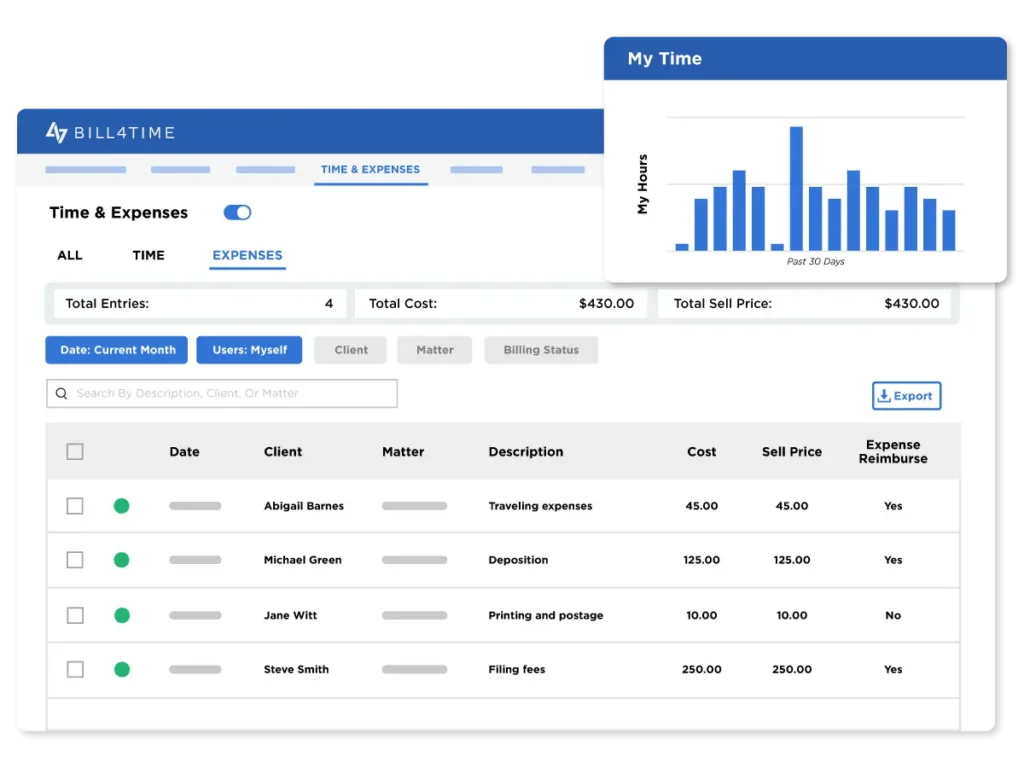
I always start by assembling a project team that brings together more than just the IT lead and managing partner. I include voices from every major workflow affected—partners, associates, paralegals, billing, and admin—because software touches every corner of a law firm. Someone from compliance or risk management is a must, especially if your practice handles sensitive or cross-border data.
Kicking things off with a team meeting lays out roles, goals, and what success will actually look like. Using legal project management software can also help centralize responsibilities, feedback, deadlines, and rollout decisions. I’ve learned the hard way that if decision-makers and daily users aren’t in the loop early, you’ll spend weeks chasing down feedback—or worse, rebuilding processes nobody agreed to. Assembly isn’t the time to debate features, but it’s the right moment to get buy-in and set expectations. The more transparent and inclusive you are now, the less resistance you’ll face later.
From trial and error, here are some best practices that save time and frustration when assembling your project team:
- Bring in cross-functional voices: Include staff from legal, admin, finance, and IT to catch blind spots early.
- Nominate a project owner: Assign one person to drive the process, chase tasks, and flag blockers.
- Set up direct feedback channels: Give everyone a clear way to raise questions or concerns during rollout.
- Clarify exactly who signs off decisions: Avoid stalls by knowing which partner or manager must greenlight major choices.
- Schedule regular, short catch-ups: Don’t wait until problems snowball—stay proactive with brief project meetings.
2. Current Workflow and Infrastructure Assessment
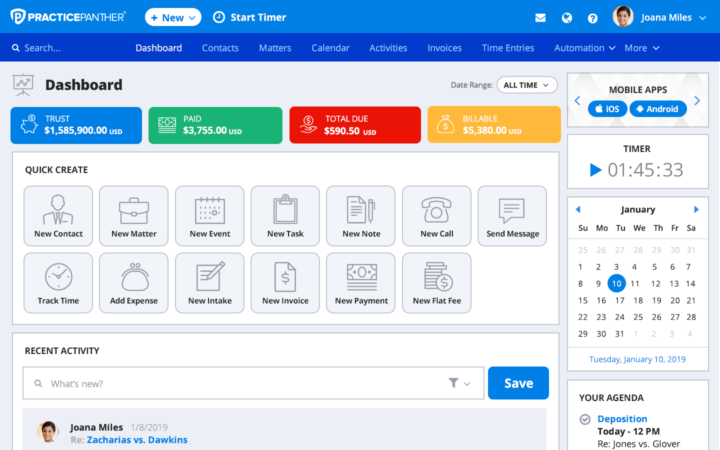
I take time to map out exactly how things work before any new software touches the firm. This means shadowing team members to see real processes in practice—not just how they’re supposed to work, but how they actually happen day to day. I document the tools already in use, bottlenecks, and dependencies between people or departments.
It’s tempting to skip deep dives here, but a shallow assessment nearly always leads to costly surprises later. I’ve seen firms assume everyone’s working the same way—then discover a paralegal’s personalized workaround breaks the new system. Include the IT team for an honest review of hardware, connectivity, and data security; nothing derails a rollout faster than finding out your infrastructure can’t support your new tools. Taking stock now means the new software fits the way your people already work, not the other way around.
Watch for these hidden workflow and tech issues—missing them can easily throw off your project later:
- Shadow IT: Staff using personal tools or apps outside official systems.
- Manual handoffs: Processes that rely on spreadsheets or email that could break in automation.
- Data silos: Information stored in isolated systems or individual computers.
- Custom templates: Firm-specific document formats that might need rebuilding in the new software.
- Aging hardware: Desktops or servers that can’t run the latest solutions.

3. Data Cleansing and Migration Preparation
When I get to this stage, I sort through existing data with the same attention I’d give a case file—no shortcuts. It’s about confirming you aren’t about to import duplicates, outdated contact info, or old matters that clutter up the new system. I always pull in someone who’s closest to the records, like a billing clerk or records manager, to help flag inconsistencies and prioritize what’s actually needed.
Preparing for migration means more than just backing up files; I create clear file structures, fix naming inconsistencies, and confirm data is in formats the new software accepts. I never assume the transition happens in one click. Testing a small data sample first has caught more than one hidden issue and saved hours of sorting through errors after the fact. If you clean and prep now, onboarding moves quicker and your team isn’t frustrated by missing or incorrect records on day one.
Use these steps to keep your migration organized and avoid unwanted surprises:
- Inventory your data: List what you have—matters, contacts, documents, billing files, and calendar events.
- Delete the junk: Purge duplicates, old contacts, and matters no longer relevant.
- Standardize formats: Make sure date fields, phone numbers, and file names are consistent.
- Test on a sample: Run a migration for a small data set before moving everything.
- Document the process: Note what’s moved, what’s left, and any known quirks for reference later.
4. System Configuration and Customization
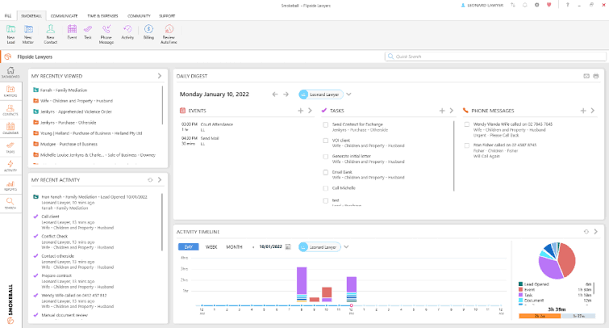
At this point, I make sure the software is set up to work for our unique firm—not just out of the box. I review the required legal case management software features before configuring user permissions, billing rates, workflows, and document templates around how we actually run cases and serve clients. This is where having input from both practice managers and your IT or vendor support pays off, since one small missed detail—a missed group permission or wrong default rate—can throw your whole system off.
I’ve found it tempting to over-customize, but sometimes that creates more maintenance down the line. I stick to essentials and document every tweak, so onboarding is smoother and updates don’t break something months later. Be ready for firm-specific needs, like trust accounting or jurisdiction-specific deadlines, and test those scenarios up front. A tailored setup should help your team, not slow them down with unnecessary extras.
Check this table to spot the biggest pitfalls and best moves when configuring your system:
| Do | Don’t | Example |
|---|---|---|
| DoLimit access by role | Don’tGive blanket admin access | ExamplePartners only see own matters |
| DoMatch templates to firm workflow | Don’tCopy vendor default templates | ExampleIntake matches current process |
| DoDocument every change | Don’tSkip change tracking | ExampleList tweaks in project file |
5. Integration With Existing Firm Applications
I review how our legal workflow software connects with email, document management, accounting, time tracking, and court e-filing tools before turning on any integrations. It’s not just about ticking off a checklist: I check version compatibility, required APIs, and data-sharing permissions between systems. I want IT and vendor reps on hand to handle more technical troubleshooting, especially for custom integrations or legacy software.
If you skip a full review here, features like calendar sync or document automation can stall. In my experience, ignoring how tools exchange client data leads to broken workflows and lost billable time. Test each integration in real-world scenarios—for example, routing an intake form all the way through to invoice. Capture any gaps in documentation, and involve end users for final sign-off. Integration isn’t “set and forget”; you’ll need to monitor ongoing syncs to catch glitches before they trip up the team.
Keep these integration tips in mind so your new software talks smoothly with your firm’s existing systems:
- Start with a systems map: Outline every other app or tool that touches client or matter data.
- Pilot one integration at a time: Fix glitches before adding another connection.
- Verify permissions and security: Ensure sensitive data only flows where it should.
- Automate common workflows: For example, sync signed engagement letters with the document management system.
- Schedule ongoing check-ins: Regularly review performance to catch failures early.
6. Data Migration and Validation
During the migration, I always work closely with IT, vendor specialists, and the staff who know the firm's data best. It’s not enough to just transfer records from one system to another—I confirm everything genuinely lands in the right spot. Running the migration outside business hours often helps minimize disruptions, but I’m ready for extra communication if staff need to wait before accessing files.
After import, I check every data type: matters, client profiles, calendar items, billing records, and document links. A spot check by users is key—asking those who live in the data daily to verify that no information is missing or mismatched. I expect small hiccups, like address fields swapped or attachments failing to link, and have a clear fix plan ready. Leaving enough time for final validation saves everyone headaches and rebuilds trust in your new platform from the start.
Follow these best practices when you’re ready to migrate and validate your firm’s data:
- Create a backup: Always save an untouched copy of your current database before starting.
- Notify users: Let the firm know when migration will happen and what impact to expect.
- Run a trial migration: Use a sample dataset to surface problems early.
- Check all record types: Validate contacts, matters, calendar entries, documents, and billing details.
- Document issues and fixes: Track any problems and confirm resolutions before sign-off.
7. User Acceptance Testing
I always make sure that actual end-users lead the testing process—not just IT or project managers. Attorneys, paralegals, and administrative staff run through daily tasks like opening new matters, generating invoices, or searching for documents. Their hands-on feedback is the best way to catch anything that slows down or confuses staff before go-live.
These users look for real-world “snags,” such as unclear prompts or misrouted workflow approvals. I’ve found it helpful to set up testing scripts based on real office scenarios and to encourage users to record bugs and suggestions directly in a shared log. Allow time for multiple feedback rounds, and prioritize fixes for anything that would disrupt urgent work. Keeping a tight loop between testers, IT, and the software vendor shortens the timeline and builds user confidence before launch.
Here are a few test scenarios you should include in your user acceptance phase:
- Open a new matter: See if a user can enter all required details and save.
- Run a conflict check: Confirm conflict rules trigger as expected.
- Draft and send an invoice: Make sure templates populate with accurate billing data.
- Search for a client file: Test quick access to files from multiple entry points.
- Route a document for approval: Watch how notifications and permissions perform in practice.
8. Staff Training and Change Management
I start by tailoring sessions for each role—attorneys, support staff, and leadership—so everyone gets hands-on practice with the workflows that matter most to them. Training isn’t just about features, though; I make sure to explain why the changes are happening, how the software impacts their daily tasks, and where to find help if they get stuck. I find that more Q&A time, plus cheat sheets and on-demand videos, keeps staff more confident and less frustrated when questions pop up later.
Managing the change goes beyond training days. I identify change champions across the firm who can reinforce new habits and flag issues once we're live. Ongoing support—whether it’s a live help desk or regular drop-in clinics—makes a huge difference in adoption. Teams are much more likely to use the software consistently if they feel supported and see the value early. Recognizing early adopters and sharing quick wins also helps build positive momentum.
Use this table to compare what works and what backfires when supporting your team through training and change:
| Do | Don’t | Example |
|---|---|---|
| DoOffer role-based training | Don’tOnly provide generic demos | ExampleCustom workflows for paralegals |
| DoShare training resources early | Don’tWait until go-live to distribute | ExampleSend cheat sheets a week before |
| DoSet up ongoing support | Don’tAssume one-time training is enough | ExampleOffice hours and peer champions |
9. Go-Live and Supervised Rollout
When launch day hits, I always have a dedicated support squad—IT, system admins, and a few vendor reps—on hand and ready. I set up a communications plan ahead of time so users know where to go for quick help or workarounds if they hit snags. Early check-ins with the most critical teams help catch anything that threatens billing, client response times, or filing deadlines right away. I’d rather address small pain points on day one than see frustrations simmer for weeks.
Supervised rollout means actively monitoring how real work flows through the system, not just waiting for support tickets. I regularly review logs, ask for feedback, and encourage people to report issues, even minor annoyances. Staging the rollout in waves—like starting with one practice group—gives the team space to fix the inevitable startup gaps before exposing the entire firm to new software hiccups. The smoother you handle these first weeks, the faster everyone buys into the new way of working.
Watch for these early warning signs when progress starts to slip during rollout:
- Missed deadlines: Teams suddenly lag on matter openings or billing.
- Repeat questions: Multiple users ask for the same help or clarification.
- Manual workarounds: Staff revert to spreadsheets or email chains.
- Support log spikes: You see a burst in IT tickets related to core workflows.
- Low login rates: Usage logs show staff aren’t signing in as expected.
10. Post-Implementation Review and Optimization
After go-live, I gather the project team, end-users, and vendor contacts to look honestly at what went well and where things still pinch. Collecting feedback can mean surveys, small group discussions, or just checking the help desk log for lingering pain points. I pay attention to repetitive issues, overlooked requests, and any feature that teams still struggle to use—those are signals for where the next improvements need to happen.
Optimization doesn’t stop at bug fixes. I revisit workflows, reporting tools, and even training documentation every few months. Regular check-ins make it easier to update templates, adjust permissions, and roll out small features that users now want after seeing the system in practice. Encouraging staff to suggest enhancements and sharing results keeps the energy positive and ensures the system continues to fit how the firm works, not just how it was originally configured.
Follow these steps to get the most out of your post-implementation review:
- Schedule feedback sessions: Meet with different user groups within the first month.
- Review support tickets: Check for recurring problems or underused features.
- Prioritize fixes: Focus first on anything impacting clients or regulatory deadlines.
- Celebrate wins: Share improvements and early successes with the whole firm.
- Plan the next review: Set a date to revisit workflows and updates in three to six months.
More Articles
Top Law Firm Software to Consider
Here's my shortlist of the best law firm software solutions:
Best Practices for a Successful Law Firm Software Implementation
Even the best tools can fall short if your approach misses the mark. Use this table to review frequent missteps and practical ways to get implementation right:
| Don’ts | Instead, Do: |
|---|---|
| Don’tsSkip needs assessment and jump right into setup | Instead, Do:Run discovery sessions with every practice group |
| Don’tsLeave staff to self-train from user manuals | Instead, Do:Provide role-specific training and live Q&A sessions |
| Don’tsOverlook data cleanup before migration | Instead, Do:Audit and standardize records before the data transfer |
| Don’tsRely on a single point person for rollout | Instead, Do:Build a project team with IT, attorneys, and admins involved |
| Don’tsWait to configure workflows until after go-live | Instead, Do:Customize workflows and templates in advance |
| Don’tsIgnore low user adoption rates after launch | Instead, Do:Monitor system usage and reach out if staff revert to old tools |
| Don’tsDismiss early complaints as resistance to change | Instead, Do:Follow up promptly on feedback and adjust the rollout plan |
A Structured Implementation Plan Sets Your Firm Up for Long-Term Success
Once your software is live and optimized, the next step is making sure it continues to deliver value—and that starts with understanding the legal case management software benefits your firm can expect from day-to-day use across case tracking, billing, client communication, and more.