

Implementing legal case management software correctly from the start determines whether your team gains a reliable system or inherits a costly mess of misconfigurations, data gaps, and low adoption. The stakes are high—case data integrity, compliance obligations, and day-to-day productivity all depend on getting it right.
A structured, phased approach gives you clear checkpoints at every stage, so nothing critical falls through the cracks. Follow the 10 phases in this guide to navigate the common hurdles of migration, training, and change management with confidence.
How I Break Down Legal Case Management Software Implementation
Here’s how I tackle each phase when bringing new legal case management software to a team:
1. Project Scoping and Requirements Gathering
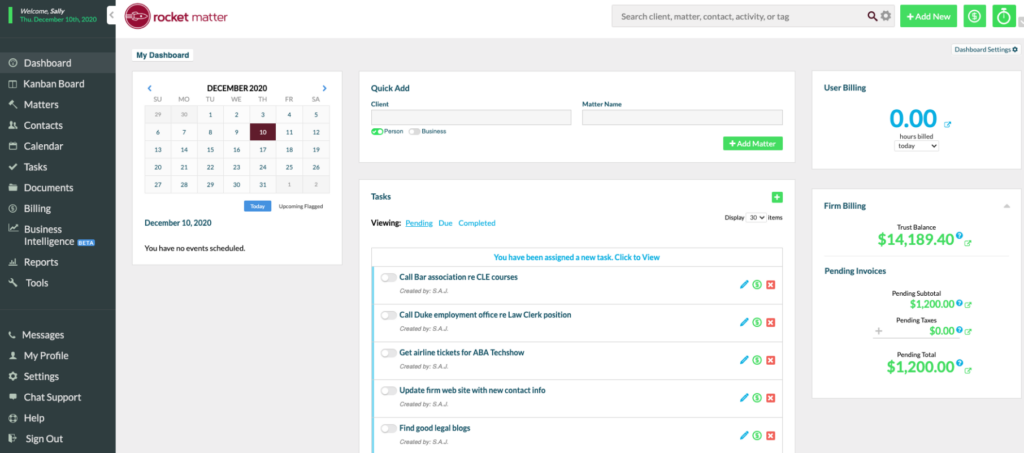
Start by sitting down with everyone who has a stake in your casework—paralegals, attorneys, legal ops, IT, and finance all bring their own priorities to the table. I always encourage teams to list out key workflows, compliance requirements, existing pain points, and must-have features, rather than just asking people what they wish the system could magically do. The more specifics you can pull out now, the less you risk missed expectations later.
I like to use legal project management software to document what teams need, how data flows between people and matters, and who owns each implementation task. Mapping this up front pays off when configuring integrations and custom fields. It’s tempting to rush this phase, but skipping tough conversations about data migration or user permissions usually means more headaches down the line. Bringing in vendor reps early can also help clarify what’s practical with your chosen tool versus what needs a workaround or a third-party app.
From my experience, these best practices make early project scoping much smoother for everyone involved:
- Involve End Users Early: Check in with paralegals and attorneys about daily tasks—not just leadership and IT.
- Map Workflows Visually: Use flowcharts or whiteboarding to spot bottlenecks and integration needs.
- Prioritize Requirements: Separate your must-haves from nice-to-haves so decisions move faster.
- Clarify Data Sources: Identify where current client and case data lives—and who owns updates.
- Address Compliance Needs: Document retention rules and privacy obligations from day one.
2. Current Workflow and Data Audit
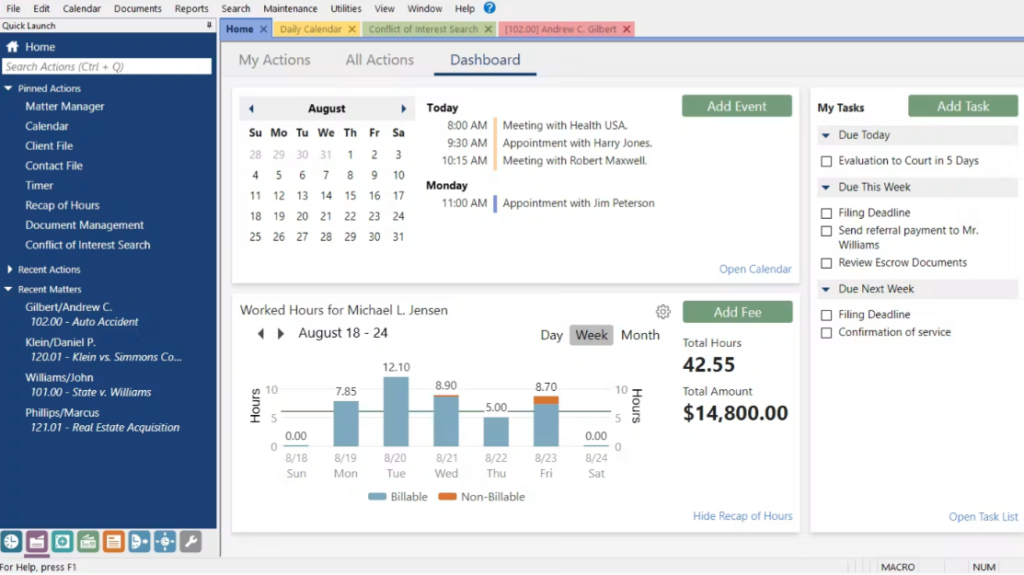
Dig into how your team actually gets work done today by mapping out every step in your current case lifecycle. I always pull in team leads and admins who handle the day-to-day details because they know where the process gets stuck or where informal workarounds hide outside the documented protocol.
Grab real data from matter management spreadsheets, email records, and legacy databases to see what’s in use, what’s duplicated, and what’s outdated. In my experience, you can’t just rely on policy docs—seeing the files, templates, and naming conventions in action reveals messy realities you’ll need to clean up or migrate later. Watch for custom fields or add-ons that people rely on but aren’t obvious to leadership. By surfacing these hidden dependencies now, you save everyone from surprises when you turn the old system off.
Use this quick reference to help your team dig deeper during the audit:
| What to Review | Why It Matters | Who to Involve |
|---|---|---|
| What to ReviewFile organization | Why It MattersAvoid lost or duplicate data | Who to InvolveParalegals, IT admins |
| What to ReviewEmail workflows | Why It MattersUncovers informal processes | Who to InvolveAttorneys, case managers |
| What to ReviewNaming conventions | Why It MattersSupports smooth migration | Who to InvolveSupport staff, IT |
| What to ReviewLegacy integrations | Why It MattersIdentifies risky dependencies | Who to InvolveTech support, vendor |

3. Stakeholder and Implementation Team Formation
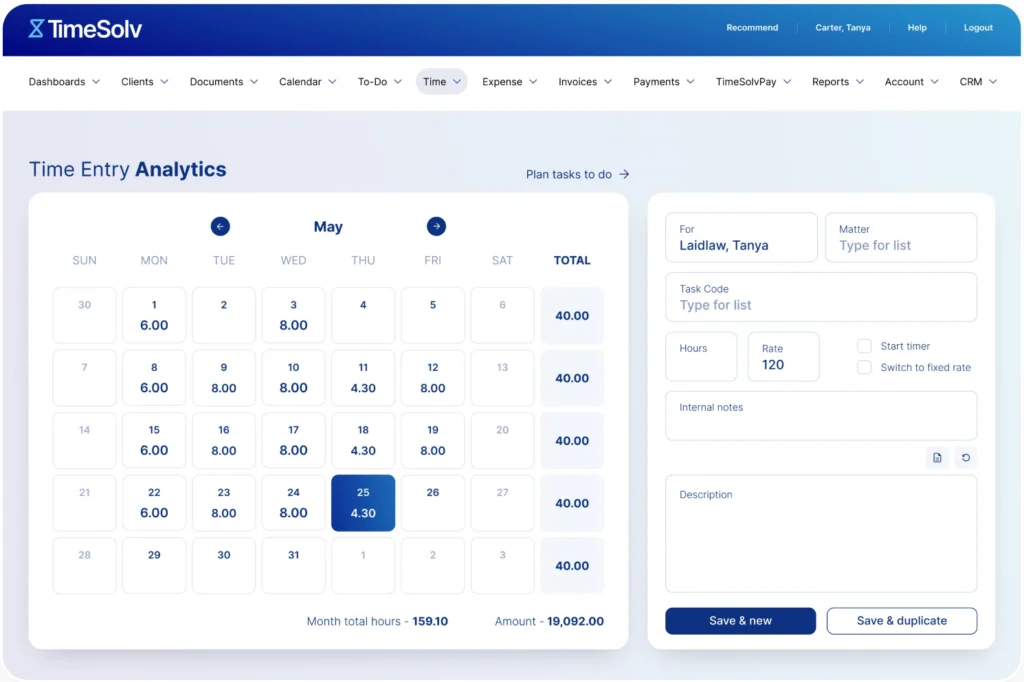
Pulling together the right group up front is something I never rush. I always nominate champions from the legal team, someone from IT, at least one admin who knows the current system inside out, and a project manager who can keep everyone accountable. Loop in finance or compliance if your new software connects to billing or sensitive data.
The most effective teams I’ve seen have a clear lead and a plan for making decisions quickly—otherwise, debates drag on and kill momentum. I encourage each person to have a defined role, not just a seat at the table. Make sure communication is frequent and open. When people know why their perspective matters and how decisions will be made, they’re much more likely to stay engaged through the messier parts of rollout.
From my own team launches, these tactics set your implementation team up for real collaboration:
- Pick One Decision-Maker: Someone needs the final say when conflicts come up.
- Assign Specific Tasks: Don’t let meetings turn into free-for-alls—name who owns each milestone.
- Balance Perspectives: Include both heavy system users and those leading compliance or technology.
- Schedule Regular Check-Ins: A 10-minute weekly huddle keeps momentum without clogging calendars.
- Define Escalation Paths: Agree on how to handle disagreements or delays before they happen.
4. System Configuration and Customization
This is the point where your requirements and workflow maps become real settings inside the system. I review the required legal case management software features before configuring fields, permissions, templates, and automations. I always bring power users into early testing because they’ll spot where a dropdown, field, or permission doesn’t align with daily needs. Lean on your vendor or a certified consultant when you hit snags with automations or compliance rules—they usually know the quickest path to avoid headaches.
Stick to what you truly need for go-live, not every wish list item from the team. Too much customization can break future updates or make training harder. I recommend building out core case types, file templates, and standard matter fields first. You can always tack on extras once people are confident and the basic system holds up under real-world usage.
If you want your configuration work to stick, here are steps I suggest you follow:
- Start Simple: Roll out basic workflows and fields before layering on custom automations.
- Test with Real Data: Use anonymized live matters to spot issues before rollout.
- Involve Power Users: Ask experienced staff to poke holes in the setup and suggest tweaks.
- Document Decisions: Write down which workflows you’ve configured and why, so updates don’t become guesswork later.
- Plan for Reviews: Schedule check-ins after a month to adjust any confusing settings.
5. Data Migration and Cleansing
This step is where I see the most time lost if teams wait until the last minute. The job isn’t just moving data—it’s combing through old cases, files, and contacts to remove duplicates, fix formatting inconsistencies, and make sure confidential details are flagged properly. I always include IT, at least one legal administrator familiar with the old system’s quirks, and sometimes outside consultants with data migration expertise.
Plan to run at least one test import using a sample set of real cases. This reveals hidden issues like broken links, missing attachments, or fields that don’t map cleanly to the new system. Ask attorneys or paralegals to review the imported records for surprises that scripts and IT teams might miss. It’s a lot easier to fix problems in a test batch than after you’ve cut over to the new system and the whole team is relying on it daily.
Watch for these common pitfalls so your team doesn’t have to scramble at the finish line:
- Overlooking Old Attachments: Forgetting to check PDF and Word file links can break record continuity.
- Skipping Test Runs: Diving straight into full migration without a test batch increases your risk of data loss.
- Not Involving End Users: IT alone may miss legal-specific nuances—attorney review spots red flags early.
- Ignoring Data Cleanup: Moving everything as-is clutters the new system with errors and duplicates.
- Missing Confidentiality Tags: Failing to carry over privacy flags can open up compliance risk.
6. Integration With Existing Tools and Systems
Connecting your legal workflow software with Outlook, document management platforms, billing solutions, and other tools your team already uses can reduce manual work and data-entry errors. I always map every integration point before launch, so there’s no confusion about what connects automatically and what still requires extra clicks or manual uploads. Bring in IT, finance, and the end users who know where frustrations pop up with your current systems.
Sometimes, not every tool will integrate cleanly out of the box. In these cases, I recommend prioritizing what matters most for day-one efficiency and documenting any required workarounds or future integration plans. Test each integration with real workflows: send a document, log an email, push a bill. You want to catch syncing issues or missing fields while you still have vendor support and before everyone’s impatient to get moving.
Use this table to compare actions that will help or hinder your integration phase:
| Do | Don't |
|---|---|
| DoTest one integration at a time | Don'tConnect every tool at once without validation |
| DoDocument setup steps and contacts | Don'tRely on memory for how systems were connected |
| DoGet user feedback on workflows | Don'tIgnore day-to-day tasks in integration design |
| DoConfirm security permissions | Don'tOverlook access controls during connection |
| DoPrioritize mission-critical systems | Don'tTackle low-impact integrations first |
7. Staff Training and Role-Based Onboarding
Training is where adoption either takes off or stalls out. I always break sessions down by user type—attorneys, paralegals, admins—so each group gets hands-on practice with features they’ll actually use. Pull in your vendor’s trainers for the first few rounds, then transition to internal power users who can offer tips in your team’s own language.
It helps to record sessions and build a quick reference guide for questions that come up repeatedly. Make training mandatory and stagger it before and after go-live—people learn best when they can practice in real time but also revisit material after using the system a few days. Don’t forget to provide a way for people to flag what’s not working, whether that’s a dedicated channel, office hours, or feedback forms.
Try these tips to keep training sessions practical and relevant for every team member:
- Role-Focused Content: Tailor examples for each user group’s daily tasks.
- Short, Frequent Sessions: Split up content so people retain what matters.
- Interactive Walkthroughs: Use live demos, not just slide decks, so staff can ask real-time questions.
- Peer Trainers: Tap experienced staff to run refresher sessions in familiar language.
- On-Demand Materials: Share recorded sessions and quick reference guides for repeat questions.
8. User Acceptance Testing
User acceptance testing (UAT) is your last chance to make sure the system works the way your team expects before you launch it for day-to-day use. Pull together a mix of attorneys, paralegals, and support staff who’ll test common tasks using real-world scenarios, including opening new matters, uploading documents, running standard reports, and confirming that matter and time-entry data flows correctly into your legal billing software. Document every bug, missing feature, or confusing workflow, and track fixes until every critical item is resolved.
UAT isn’t just about checking technical requirements. It’s about making sure the software fits your team’s habits and doesn’t slow them down. Make it easy for users to give feedback—quick forms, regular stand-ups, or a shared tracking sheet work well. Budget enough time for at least two full test cycles, because almost nobody gets everything right on the first try. This is also when you’ll spot training gaps or leftover data issues, so listen closely to your testers.
Follow these steps to get the most out of your user acceptance testing process:
- Select a Diverse Test Group: Involve users from every role who’ll use the software regularly.
- Define Core Workflows: Have testers walk through daily and high-risk tasks, not just generic features.
- Record Clear Feedback: Use a shared tracking sheet for issues and suggestions.
- Prioritize Fixes: Focus first on blockers that halt legal work or critical reporting.
- Repeat Testing After Fixes: Run at least one more round to confirm problems are resolved.
9. Go-Live and Phased Rollout
Launching your new system often works best in waves, not a single big bang. I suggest bringing on a pilot group—often a small, tech-savvy practice team or administrative staff—first. Monitor how they use the system, track any urgent issues, and adjust training materials and system settings based on what you learn from this first run. Communicate clear timelines so everyone knows when they’ll transition and what support is available during cutover.
Even after go-live, set aside “hypercare” days where help is easy to reach and quick to respond. This builds confidence during the first week, when both technical issues and routine user confusion are bound to crop up. Ensure IT, project leads, and vendor support contacts are on standby for rapid resolution. Capture lessons learned from each wave so the next team’s rollout is smoother and fewer surprises pop up along the way.
Consider these best practices for a smoother go-live and phased rollout:
- Pilot Group First: Start with a smaller, adaptable team to work out early issues.
- Hypercare Window: Provide dedicated support channels in week one for instant help.
- Staggered Waves: Bring other users on in clear, planned phases, not all at once.
- Celebrate Progress: Mark each successful team migration to keep momentum high.
- Collect Feedback: Document and share each wave’s lessons so every group benefits.
10. Performance Monitoring and Continuous Optimization
Once the system is live, keep a regular pulse on how it’s supporting legal work. I recommend tracking metrics like matter turnaround time, overdue tasks, and user login frequency. Pair these numbers with direct user feedback during monthly check-ins or quick surveys so you catch workflow snags before they become real issues. Set a schedule for system audits—quarterly or biannually—so nothing gets stale or overlooked.
Involve department heads, IT, and vendor reps in these reviews. Stay proactive: when new features roll out or workflows change, run micro-training sessions to keep everyone current. Use what you learn from your data and conversations to tweak templates, update permissions, or automate more steps. Approach performance monitoring as an ongoing process, not a final checkbox—your team’s needs will evolve, and your system should too.
Use this table to keep your optimization efforts focused and practical:
| Do | Don’t |
|---|---|
| DoSet recurring review meetings | Don’tWait for user complaints to prompt action |
| DoTrack workflow metrics | Don’tRely only on anecdotal feedback |
| DoShare insights cross-team | Don’tKeep optimization efforts siloed |
| DoUpdate training as features change | Don’tAssume initial onboarding is enough |
| DoCollaborate with your vendor | Don’tTry to solve persistent issues alone |
More Articles
Top Legal Case Management Software to Consider
Here's my shortlist of the best legal case management software solutions:
Best Practices for a Successful Legal Case Management Software Implementation
Even well-planned implementations can go off track if you fall into common traps. Use this table to sidestep frequent pitfalls and focus on proven actions instead:
| Don’ts | Instead, Do: |
|---|---|
| Don’tsSkip involving end users in early decisions | Instead, Do:Invite feedback from attorneys, paralegals, and support staff early |
| Don’tsMigrate old, unvetted data all at once | Instead, Do:Clean and prioritize data before migrating only essential records |
| Don’tsTreat training as a one-time launch event | Instead, Do:Offer ongoing training, refresher sessions, and easy help channels |
| Don’tsAssume “go-live” means project completion | Instead, Do:Keep monitoring performance and refining workflows post-launch |
| Don’tsLet IT or vendors set the agenda solo | Instead, Do:Make business users co-owners of process design and improvements |
| Don’tsIgnore feedback on confusing workflows | Instead, Do:Regularly review pain points and adjust system settings or templates |
| Don’tsOverlook change management for support teams | Instead, Do:Prepare a communication and resource plan for all roles |
Implementation Is Only the Beginning
A successful rollout sets the foundation, but the real value of your investment shows up over time—and it starts with understanding the benefits of legal case management software you can expect once your system is fully up and running.